Admin and Manager Login
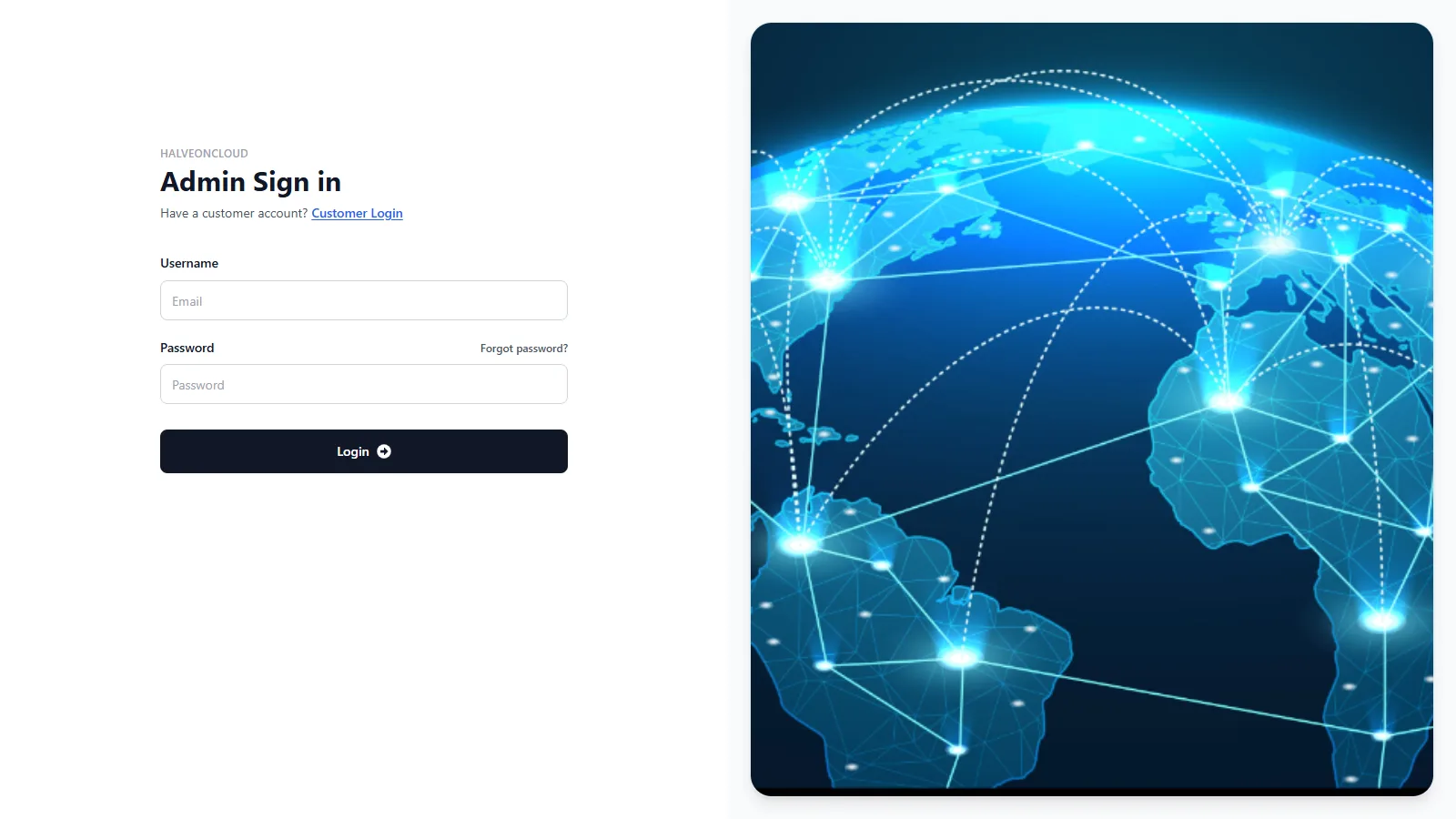
The Admin Login page is for Halveon administrators and managers. Both sign in on the same page; the menu depends on the role.
Steps to Login
- Navigate to the Admin Login page — from the customer sign-in page, use the link Admin Login ("Halveon admin or manager? Admin Login"); the admin page links back with "Have a customer account? Customer Login".
- Enter your e-mail address (field Username) and Password.
- Click the Login button.
Administrators
| Menu | What it is for |
|---|---|
| Account Management | All customers with their devices and e-mail addresses; open a customer to see its devices and data |
| Bulk Configuration | Configure several devices at once |
| Add Customer | Create a customer account; every address receives the welcome e-mail (see Your Account). The customer name must be new: an existing name is refused |
| Update Customer | Change a customer's details, addresses and devices; the customer's addresses receive an e-mail about the change (see Your Account). An address entered twice, or a new address that belongs to another customer, is refused |
| Delete Customer | Remove a customer account; every address of the account receives the de-registration e-mail |
| Notification Settings | Choose who receives each e-mail type, per customer (see Notification Settings) |
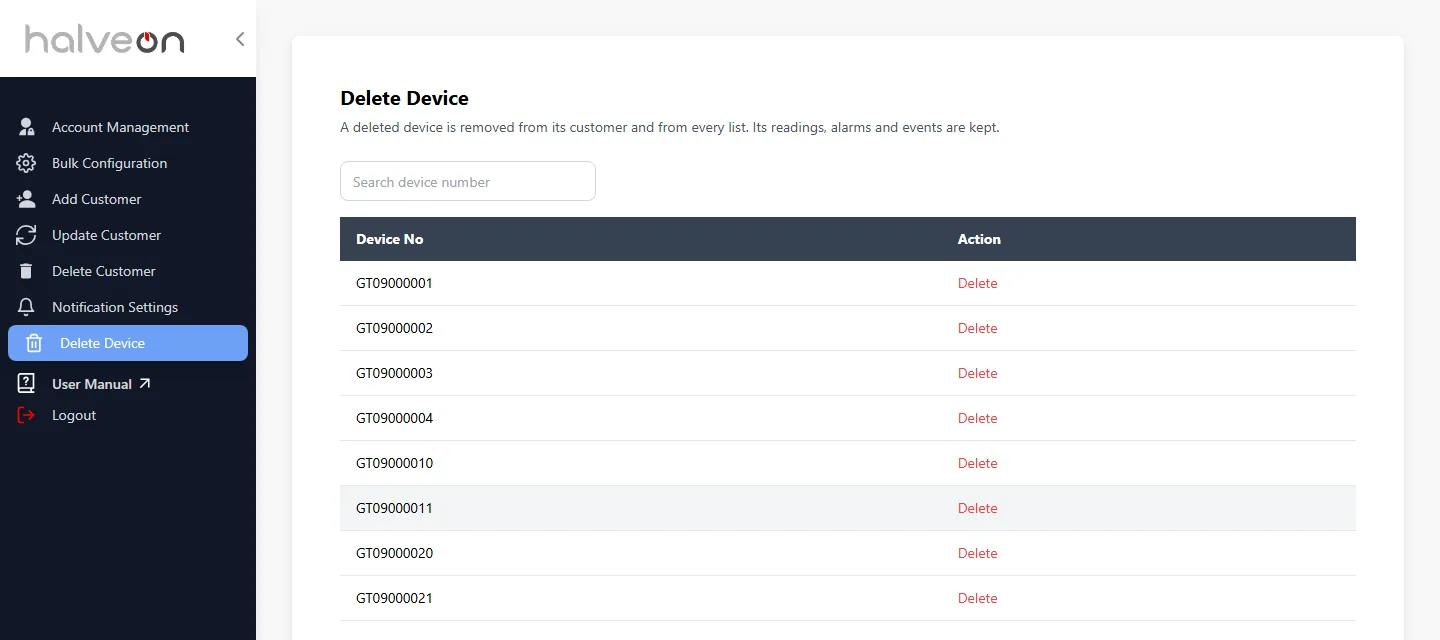
| Delete Device | Remove a device from its customer and from every list |
| Unassigned Devices | The devices of the Halveon account that belong to no customer: New stock (never had an owner) or Returned (had one), with the last owner, the last time the device was seen and its last data sent to HalveonCloud. Read-only |
Delete Device
A deleted device is removed from its customer and from every list; its readings, alarms and events are kept. An open alarm of the device is closed at that moment, without an e-mail. The device's data is no longer delivered to HalveonCloud (the same happens when a device is removed from a customer and belongs to no other one). The addresses of the customer that had the device receive an e-mail about the change. A deletion cannot be undone in the platform.
Managers
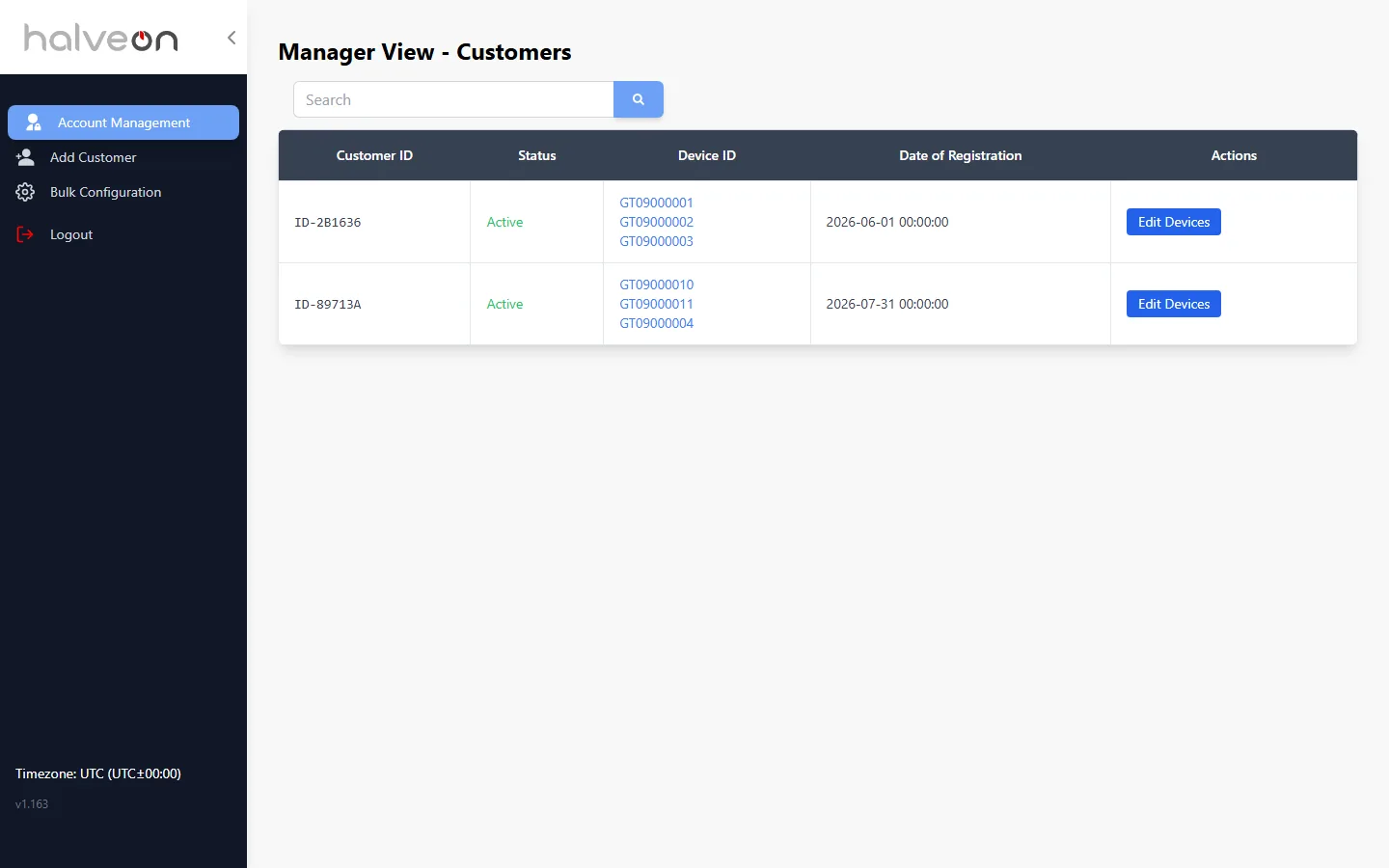
Managers see customers by customer ID only — no customer names and no e-mail addresses — with their devices, and can:
- Edit Devices of a customer: add devices; devices already assigned cannot be removed (only the administrator removes devices),
- Add Customer,
- use Bulk Configuration.
Add Customer (manager)
- Step 1: Customer Details — Customer Name, Status, Address Line 1 and 2, City, State, Date of Registration and the e-mail addresses (the first one is the primary user). The customer name must be new: an existing name is refused.
- Step 2: Select Devices — the devices for the new customer.
- Step 3: Bulk Configuration — the settings for these devices. Submitting creates the customer and configures the devices; the result lists Customer Created and, per device, the configuration and start status.