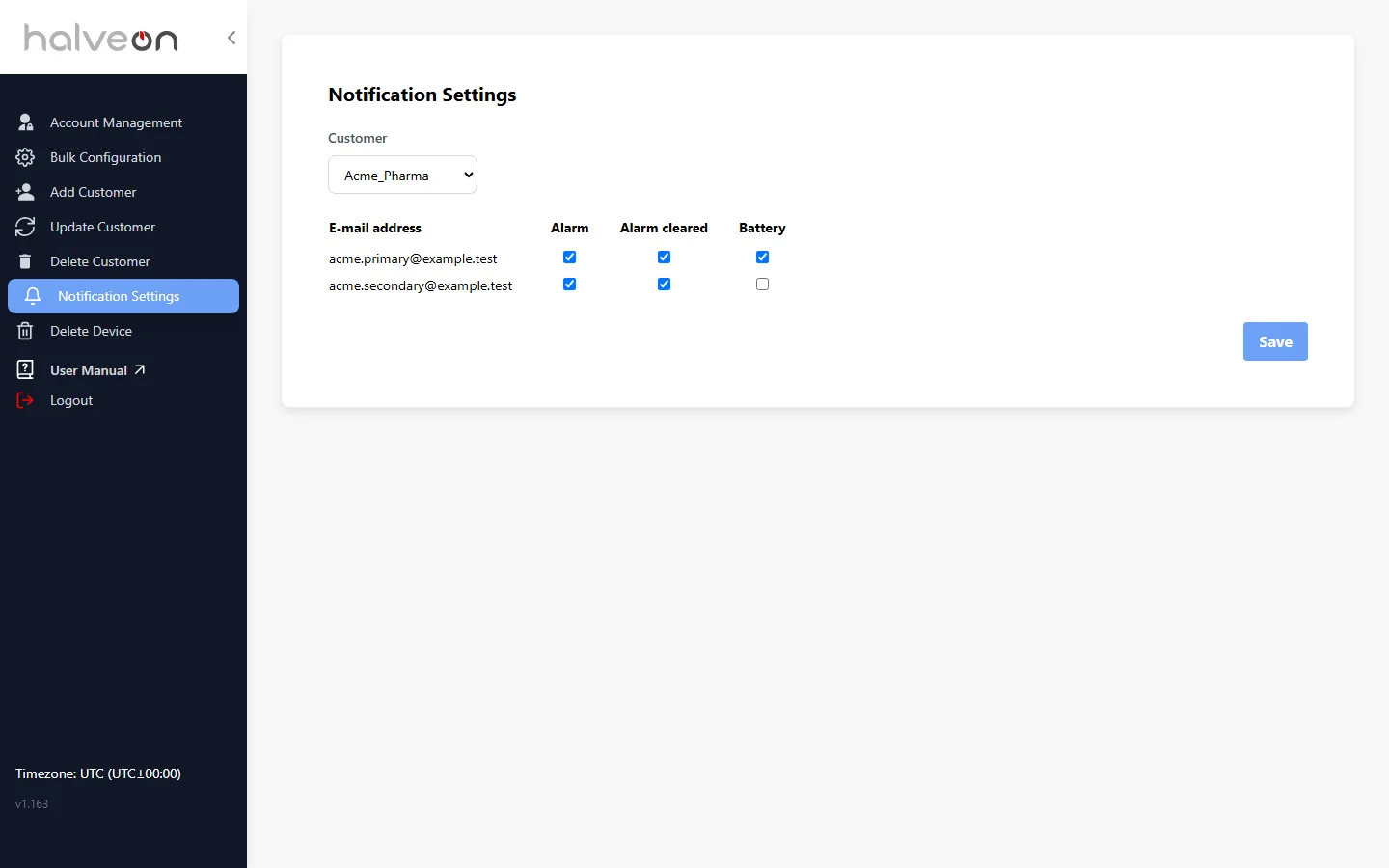
Notification Settings
Choose which e-mail addresses of your account receive each kind of e-mail. This page is available to the primary user: Account Management → Notification Settings.
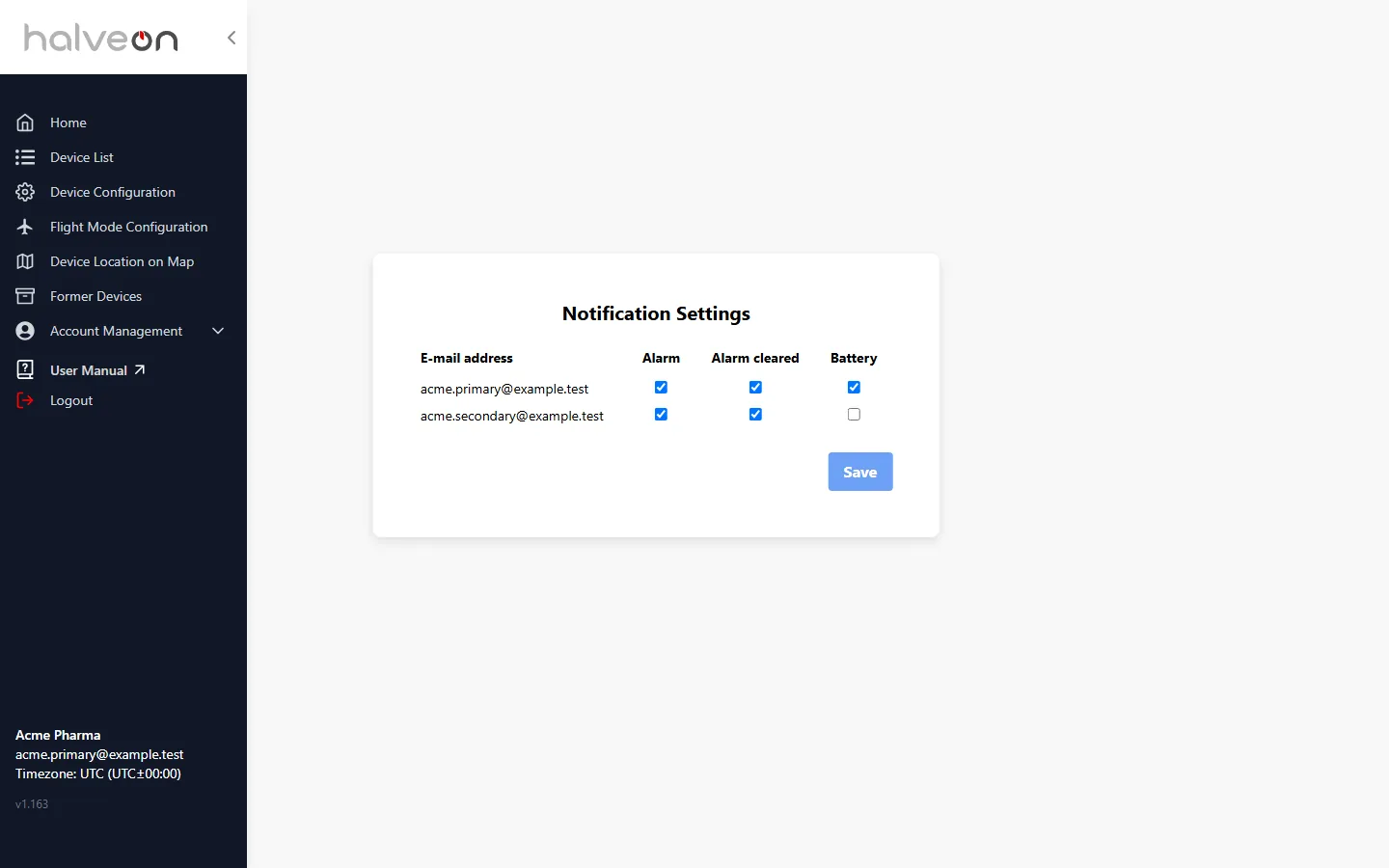
How to use it
The table lists every e-mail address of your account. For each address, tick the e-mails it should receive:
| Column | E-mails |
|---|---|
| Alarm | An alarm started (see Alarms) |
| Alarm cleared | The alarm ended |
| Battery | A device's battery state changed |
Click Save. Every column needs at least one ticked address.
Until you save for the first time, alarm and alarm-cleared e-mails go to every address of the account and battery e-mails go to the primary address.
Battery e-mails
A battery e-mail is sent when a device's battery state changes:
| Device | State |
|---|---|
| Not charging | Warning below 20 %, Critical below 5 % |
| On the charger | About to full charge from 80 %, Fully charged from 95 % |
When the battery is back in the normal range, a Battery Status Update e-mail is sent. No e-mail is sent as long as the state stays the same.
For administrators
Administrators set the same choices for any customer: Notification Settings in the admin menu, then choose the customer.