HalveonCloud - Home Page Features
The Home page is the start page for customers. From top to bottom it shows the temperature and humidity charts, the statistics of your devices and the Device Essentials table with all your devices, grouped into trips.
1. Temperature and Humidity Charts
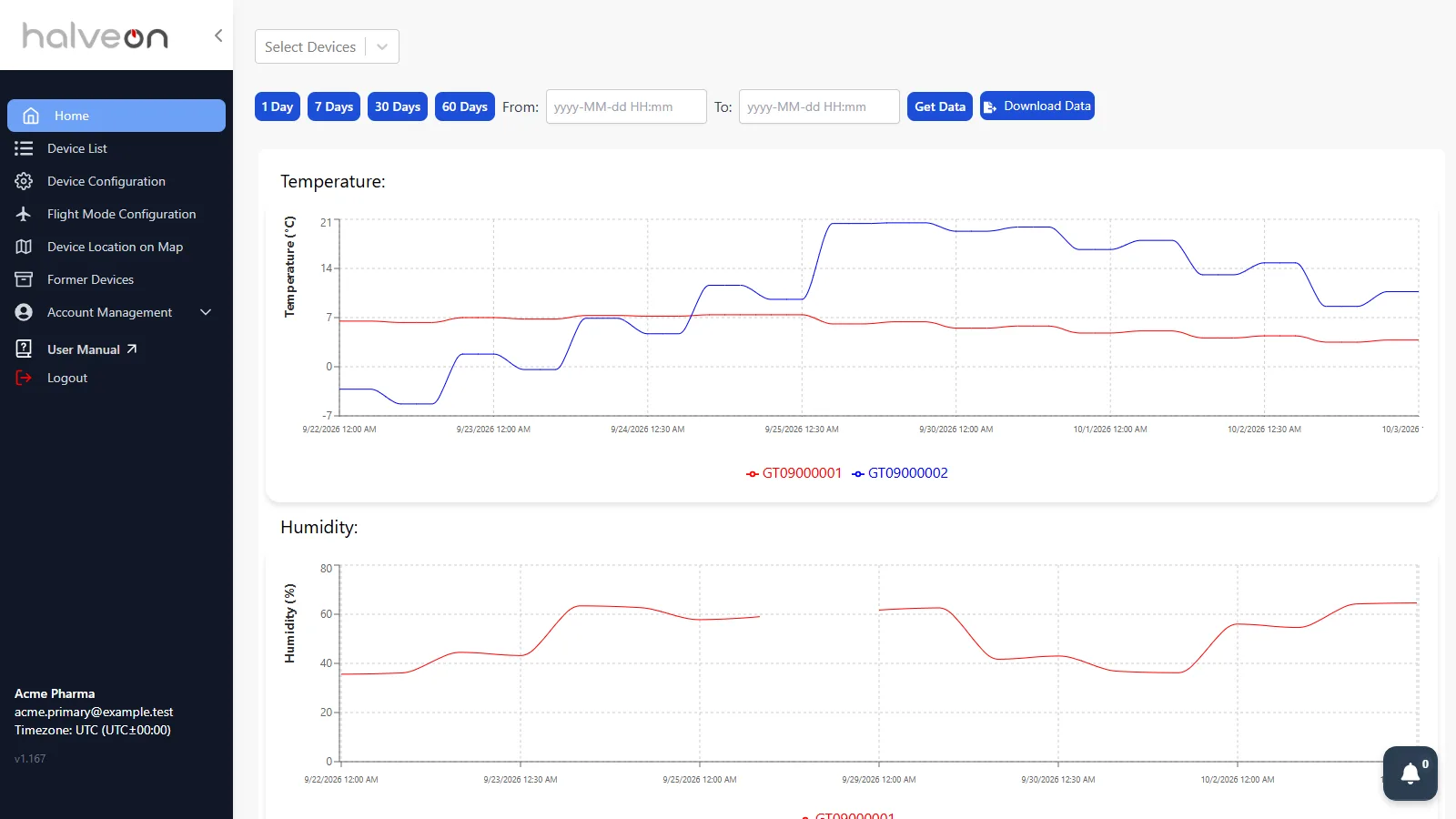
When the page opens, the charts show the last 30 days of all your devices. Each device has its own colour.
Choose devices and a period
- Select Devices: choose one or more devices.
- Choose the period:
- 1 Day, 7 Days, 30 Days or 60 Days — the chart is loaded at once (with no device selected, all devices are used), or
- From and To (date and time), then Get Data.
- Hover over a line to see the exact value and time.
The Humidity chart shows only devices that send humidity values (devices with a humidity sensor).
Temperature and Humidity Chart:
2. Dashboard Statistics Overview
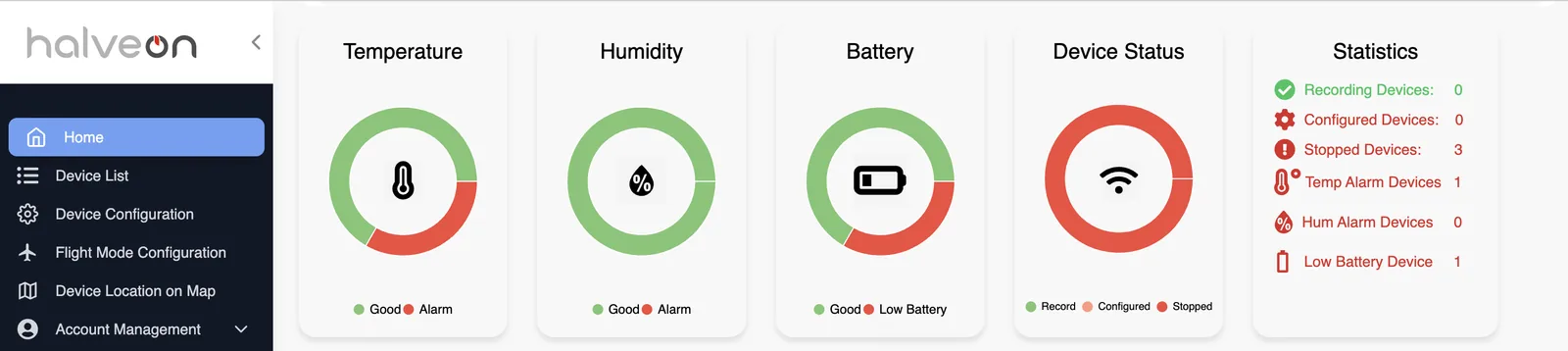
Below the charts, five cards summarise your devices:
| Card | What it counts |
|---|---|
| Temperature | Good / Alarm: devices whose current temperature is outside their alarm limits count as alarm (only devices that are recording with alarms switched on) |
| Humidity | The same for humidity, for devices with a humidity sensor |
| Battery | Good / Low Battery: low battery means 20 % or less |
| Device Status | Record (recording), Configured, Stopped (stopped, or battery below 4 %) |
| Statistics | The same numbers as a list: Recording, Configured and Stopped devices, Temp Alarm, Hum Alarm and Low Battery devices |
Dashboard Statistics:
3. Device Essentials Table
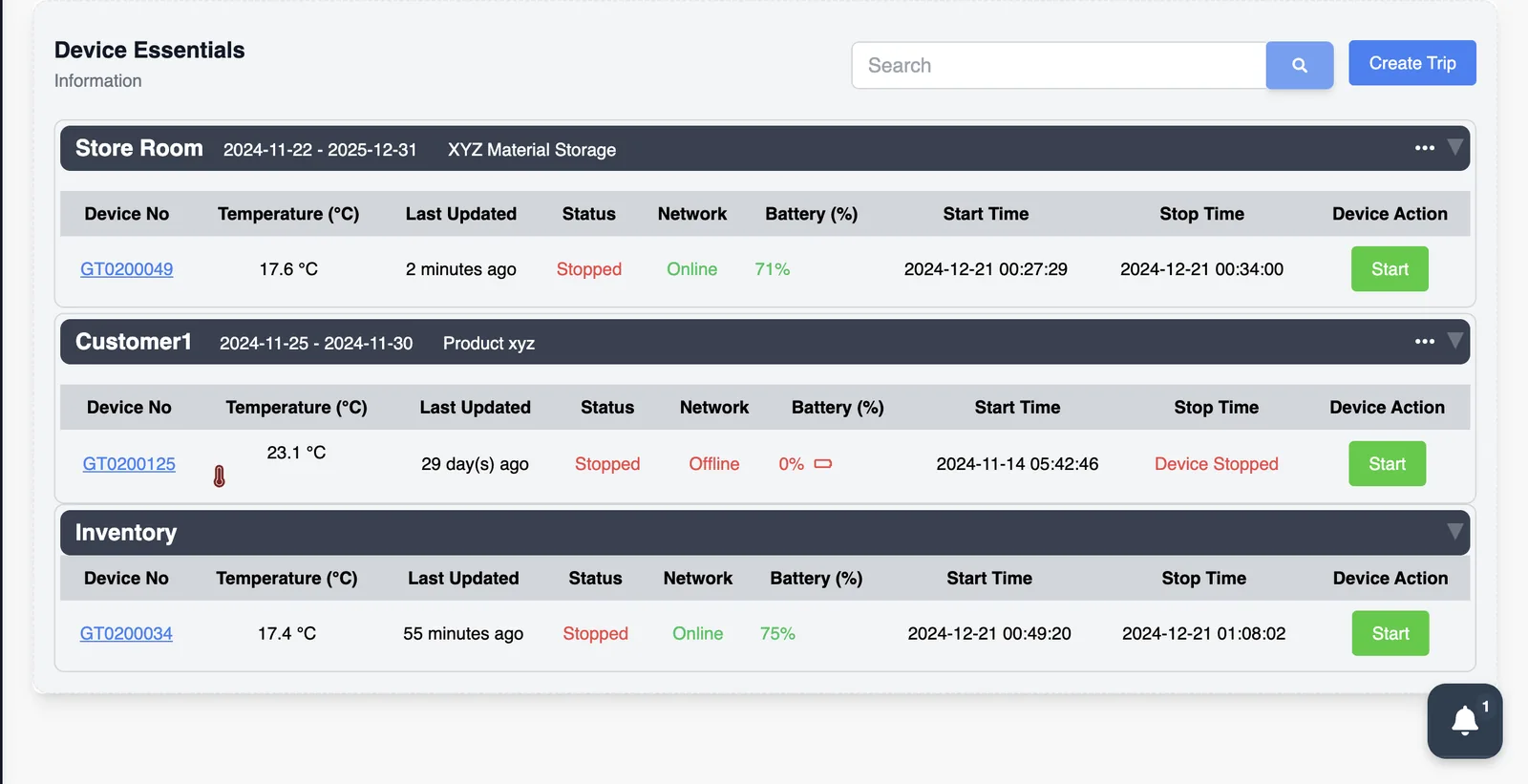
The table lists all your devices. Devices that belong to a trip are shown under the trip; all others under Inventory (see Trips). Use Search to filter the rows; click a column title to sort.
Columns:
- Device No: click it to open the device page.
- Temperature (°C): latest temperature. A red, pulsing thermometer marks a device in alarm (see Alarms).
- Last Updated: how long ago the device last reported (for example "5 minutes ago").
- Status: Configured, Start delay, Recording, Stopped or Not Reachable.
- Network: Online, Offline or "Low Power Mode Enabled".
- Battery (%): battery level; shown in yellow below 20 % and in red below 5 %.
- Start Time / Stop Time: start and stop of the recording ("Device yet to start" for a configured device).
- Device Action: Start or Stop (see below).
Device List Table:
4. Start and Stop a Device
The Start and Stop buttons are for the primary user. For secondary users they are greyed out ("This feature is accessible only to the primary email ID"). A button is also greyed out when the battery is 10 % or less ("Battery Dead") and while a command for the device is still running.
Start
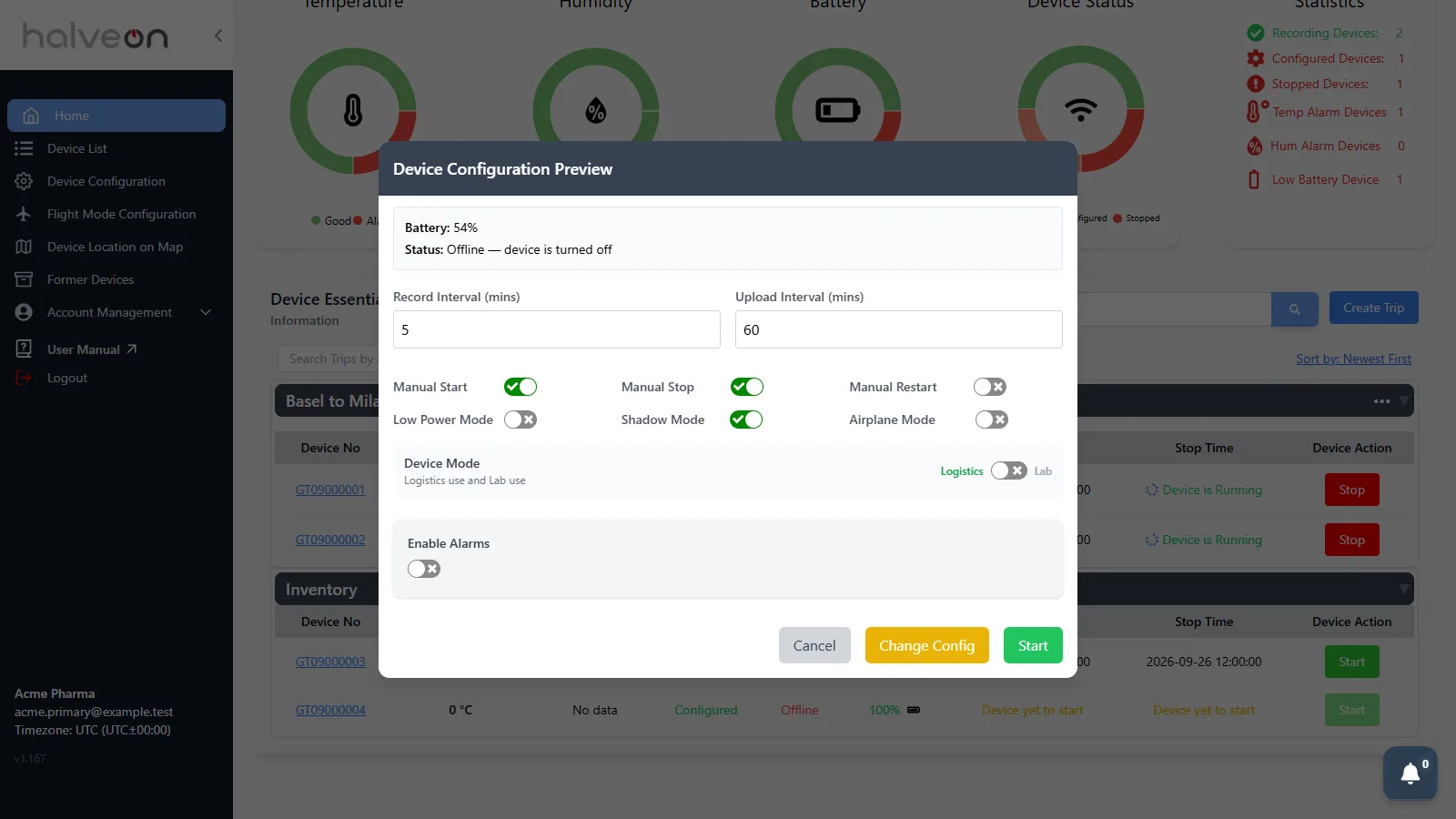
- Click Start. The Device Configuration Preview opens with the device's current settings.
- At the top it shows the Battery and whether the device is online (the start is carried out at once), in Low Power Mode (the start is queued until the device wakes up) or offline.
- Check or change the settings: Record Interval and Upload Interval (minutes; the upload interval must be at least twice the record interval), Manual Start, Manual Stop, Manual Restart, Low Power Mode, Shadow Mode, Airplane Mode, Device Mode (Logistics or Lab) and Enable Alarms with the limits (see Device Configuration).
- Click Start. Change Config opens the Device Configuration page for the device instead; Cancel closes the window.
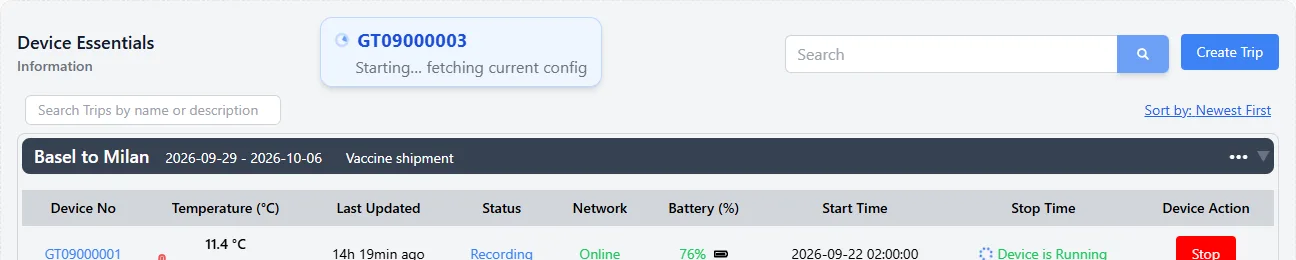
While the start runs, a card above the table shows its progress (for example "Starting… fetching current config", "Device starting… sending start command") and finally "Device is recording", or a message if the start is queued or failed. Close the card with ×.
Stop
Click Stop, check the battery and status shown, and confirm with Stop. For a device in Low Power Mode the stop command is queued until the device wakes up.
A new device that was never switched on
A device that has never reported to the platform (status Configured, offline, no data) cannot be started from the platform. Its Start button is greyed out; hover over it to see the hint: press the START/STOP button on the logger. Once the device has connected, it is listed with its readings.

5. Download Device Data
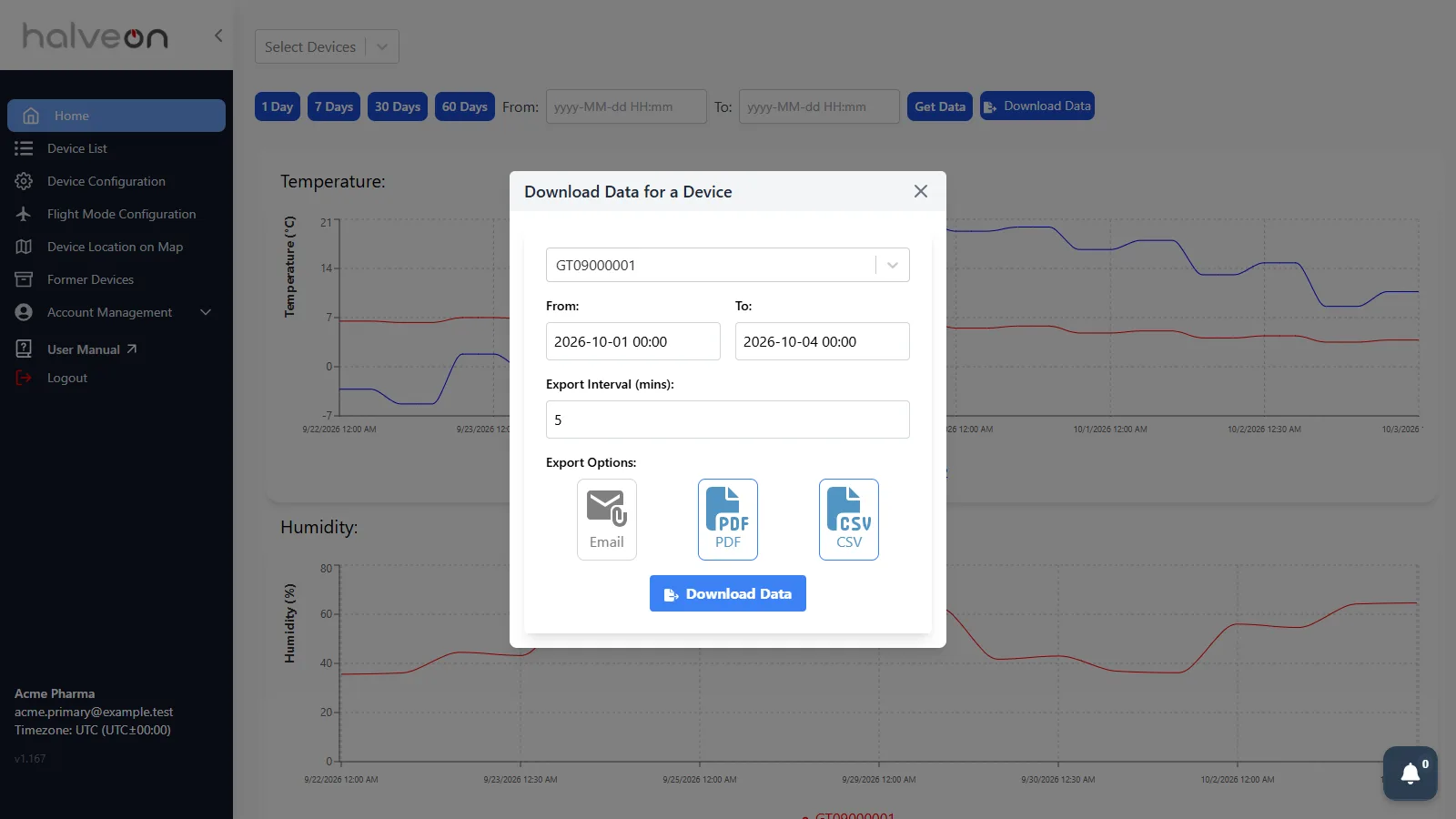
- Click Download Data (next to the chart filters). The window Download Data for a Device opens.
- Select the device (one device per download).
- Choose From and To (date and time).
- Set the Export Interval in minutes (minimum 5, in steps of 5).
- Choose the Export Options:
- PDF — always included,
- CSV — included unless you click it off,
- Email — also sends the report by e-mail to every address of your account.
- Click Download Data.
The file is prepared in the background; when it is ready, it is downloaded (PDF and CSV together come as one ZIP file). If there is no data in the chosen period, a message shows the period for which data is available.
Export Device Data:
6. Exported Files Panel
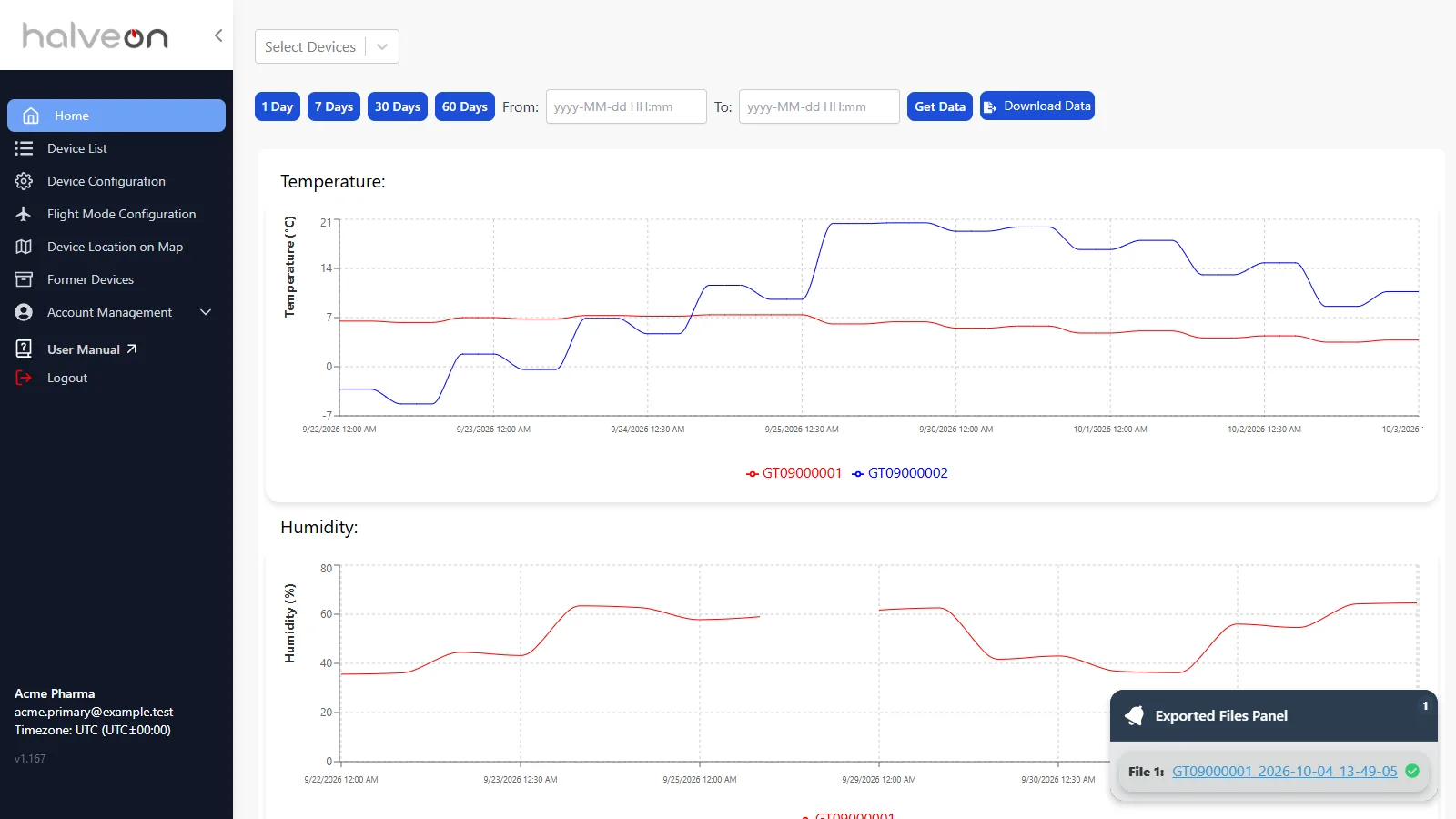
The bell at the bottom right opens the Exported Files Panel. It lists your last 3 downloads with a link to each file, a progress figure while a download is being prepared, or the error message. The number on the bell shows the downloads in progress (or the files listed).
Exported Files Panel:
7. Trips Feature
Trips group your devices, for example by shipment or by room. A device belongs to at most one trip; devices without a trip are listed under Inventory.
Create Trip
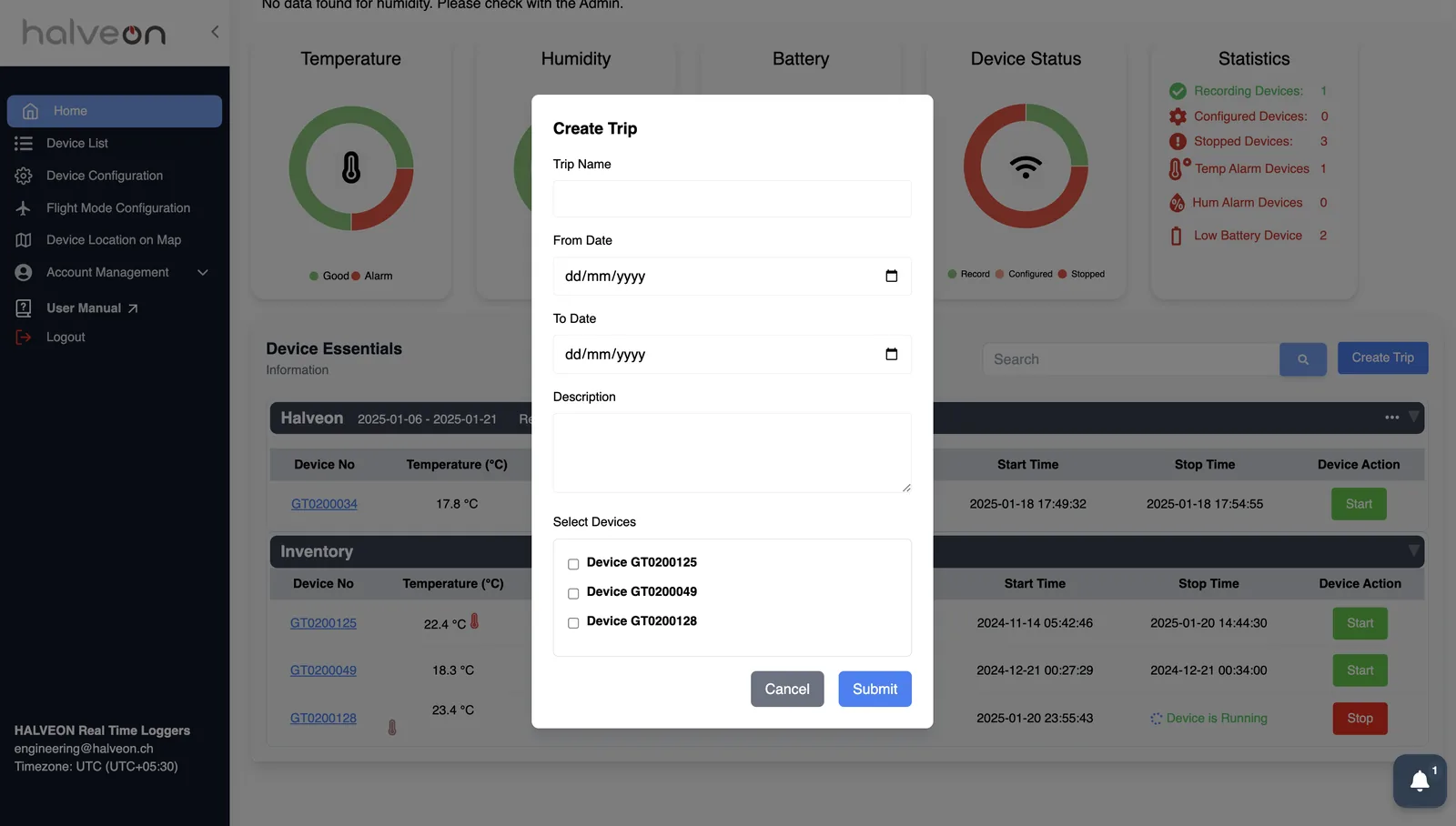
- Click Create Trip (above the table).
- Fill in Trip Name, From Date, To Date (later than the from date) and Description — all are required.
- Under Select Devices, tick the devices (only devices that are not in another trip are offered; at least one).
- Click Submit.
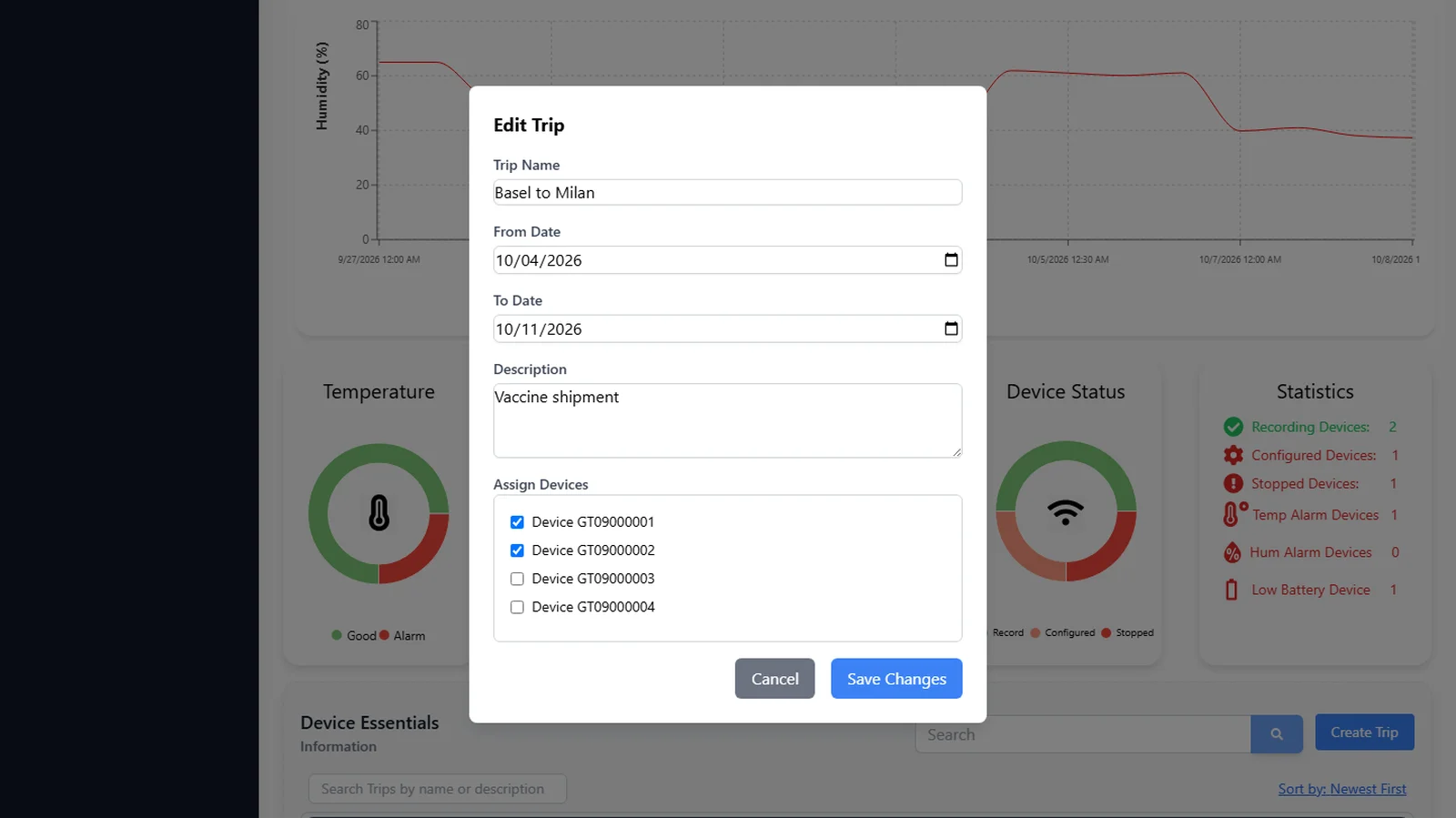
Edit Trip
- Click ••• on the trip's bar and choose Edit.
- Change the name, dates, description or devices. Under Assign Devices, the trip's devices are listed ticked — untick one to take it out of the trip (it goes back to Inventory); the devices that are in no trip are listed unticked — tick one to add it.
- Click Save Changes.

Delete Trip
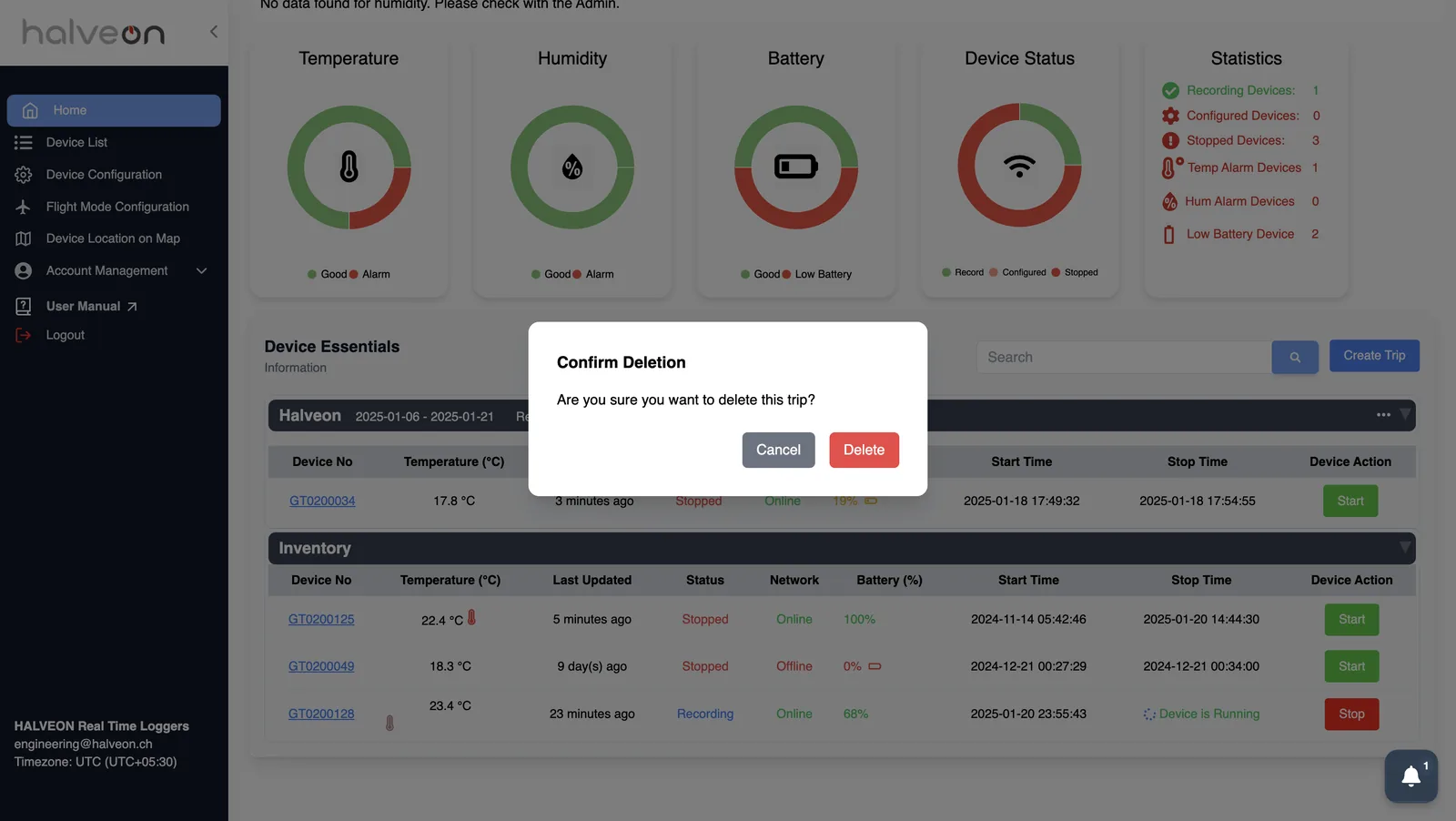
- Click ••• on the trip's bar and choose Delete.
- Confirm with Delete. The trip's devices go back to Inventory; the devices and their data are not deleted.

Find, sort and collapse trips
- Search Trips by name or description filters the trips.
- Sort by: Newest First / Oldest First orders the trips by their from date.
- Click a trip's bar (▼ / ▶) to collapse or expand it; the Inventory bar works the same way.
