Account Management
Overview
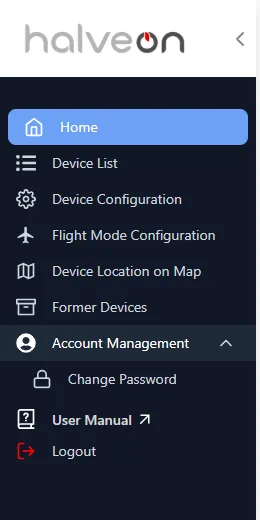
The Account Management menu holds the account settings. The primary user has Change Password, Select Timezone, Profile and Notification Settings; secondary users have Change Password only.
Features for Primary Users
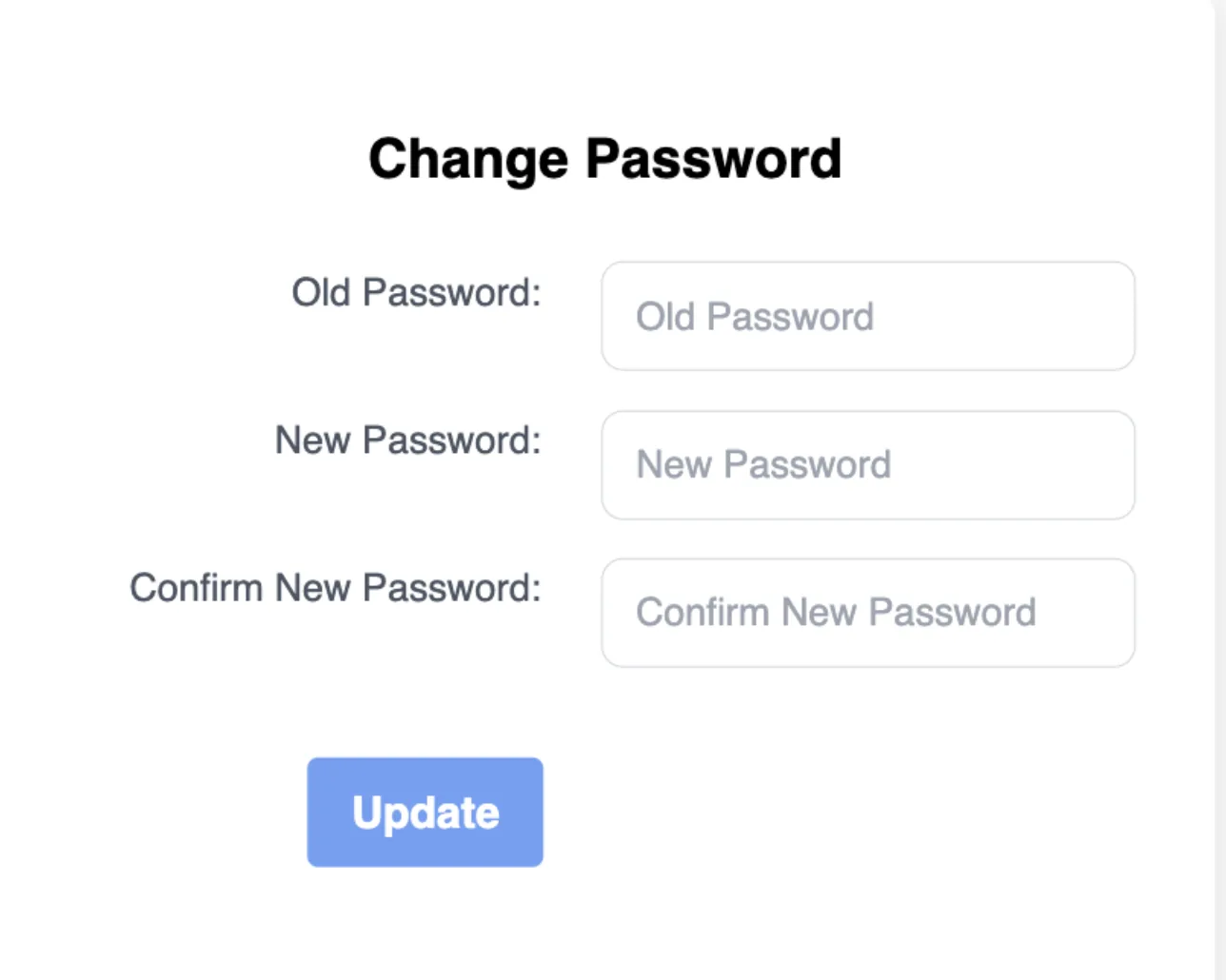
1. Password Change
- Where: Account Management → Change Password.
- Steps:
- Enter the Old Password.
- Enter the New Password: at least 8 characters, including at least one number.
- Repeat it in Confirm New Password.
- Click Update.
- Result: "Your password has been changed successfully". If the old password is wrong or the new one does not meet the rule, the password is not changed ("Failed to change password").
2. Devices of your account
- Devices are added to your account and removed from it by Halveon only. Customers (primary and secondary users) cannot add or delete devices — contact Halveon for a new device or to remove one that is no longer needed, lost or broken.
- Your devices are listed on the Device List and, read-only, in your Profile.
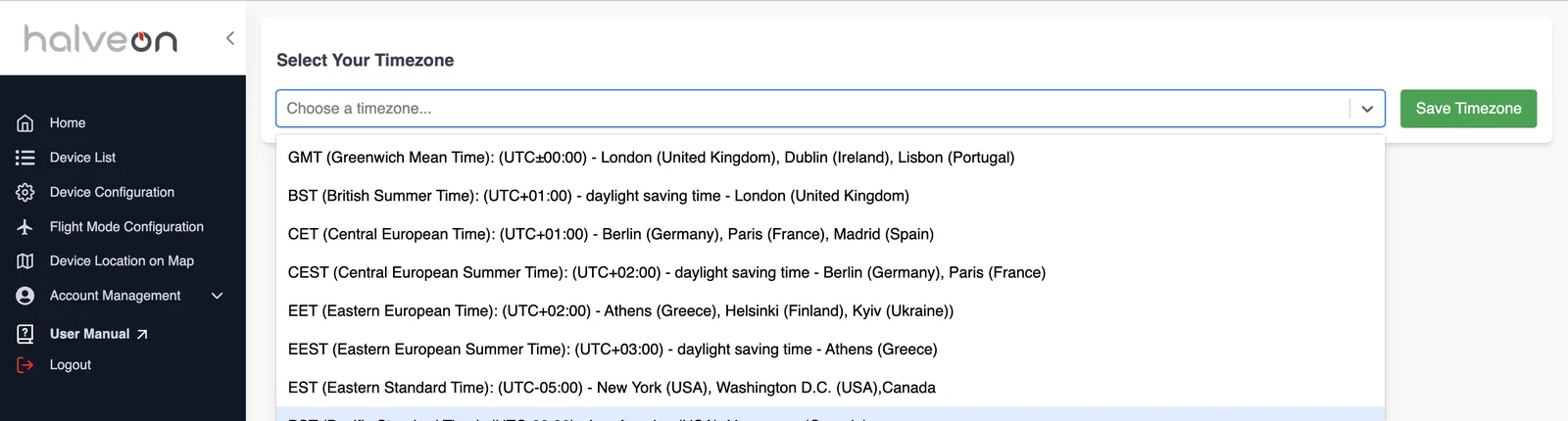
3. Select Timezone
- Where: Account Management → Select Timezone.
- Steps:
- Open the list and choose a time zone (until you choose one, your computer's time zone is used).
- Click Save Timezone.
- Result: the device page shows the alarm table and the historical data in this time zone, and the menu shows its UTC offset. The choice is stored in this browser: set it again on another computer or browser.
4. Profile Management
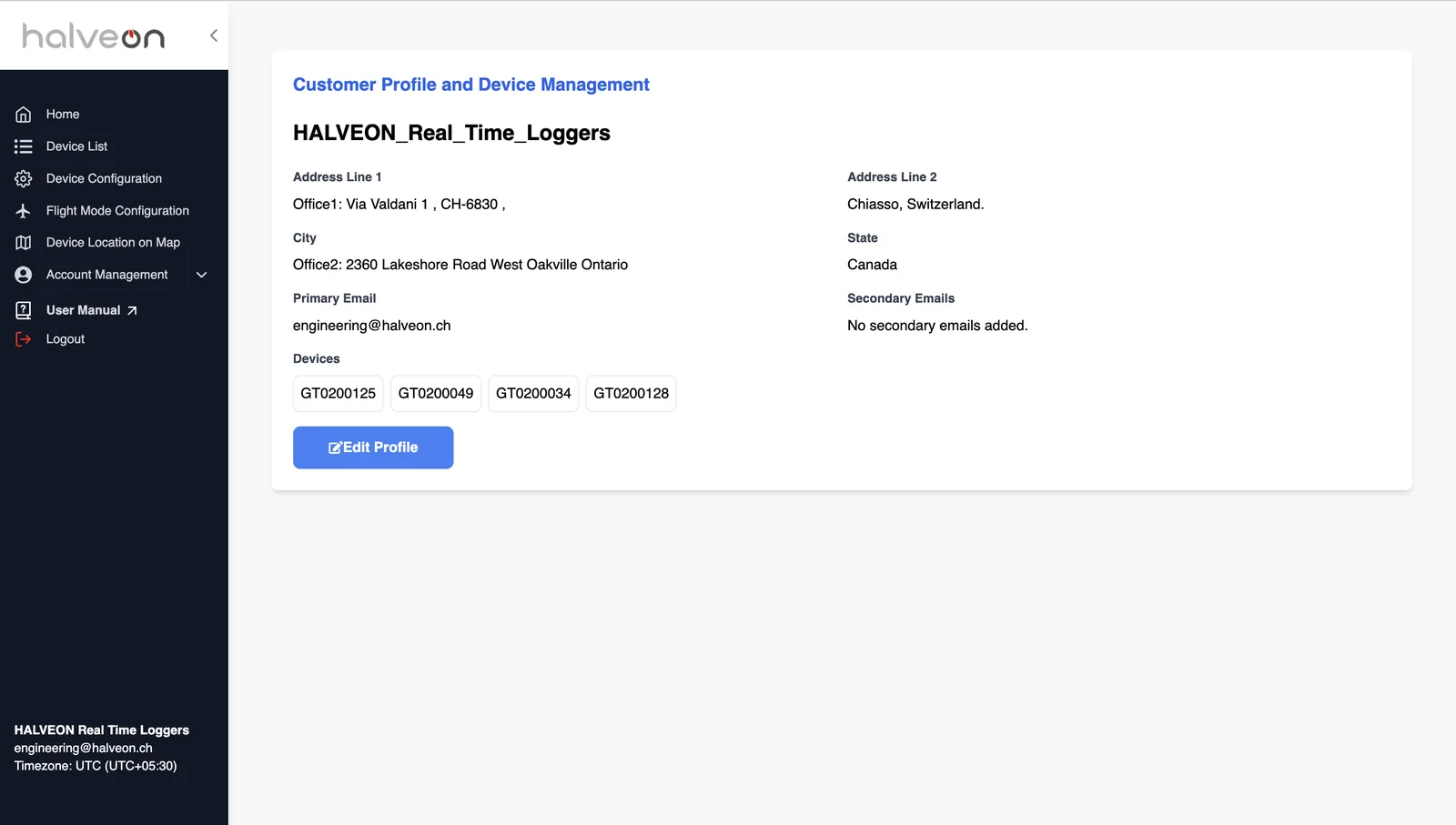
- Where: Account Management → Profile (Customer Profile and Device Management).
- Click Edit Profile to change:
- Address Line 1, Address Line 2, City, State,
- Secondary Emails: Add New Email adds an address, the bin icon removes one.
- Click Save Profile.
- Cannot be changed here: the Primary Email and the Devices (shown read-only).
- New secondary address: it receives the e-mail Your Account has been Updated with a password to log in (change it after the first login). An address that belongs to another customer is refused.
- Removed secondary address: it can no longer log in.
5. Notification Settings
- Purpose: choose which e-mail addresses of your account receive alarm, alarm-cleared and battery e-mails.
- Where: Account Management → Notification Settings. Details: Notification Settings.
Features for Secondary Users
Password Change
- Secondary users have Account Management → Change Password only.
- The process and the password rule are the same as for the primary user.
Quick Guide to Account Management
For Primary Users
- Password Change: Account Management → Change Password.
- Devices: added and removed by Halveon only; contact Halveon for changes.
- Select Timezone: the time zone of the device page's alarm table and historical data.
- Edit Profile: address and secondary e-mail addresses (primary e-mail and devices are read-only).
- Notification Settings: who receives alarm, alarm-cleared and battery e-mails.
For Secondary Users
- Password Change: Account Management → Change Password.