Device Configuration Page
Overview
The Device Configuration page (Configure Devices) sets the recording, upload and alarm settings of one device. It is available to the primary user. Secondary users can open it and see the settings, but cannot change them ("Modification feature is only accessible to primary email ID.").
The page also opens from the Home page: Start → Change Config opens it for that device.
1. Select Device
- Choose the device in Select a Device. The fields show the device's current settings.
- Until a device is selected, the fields and buttons are disabled.
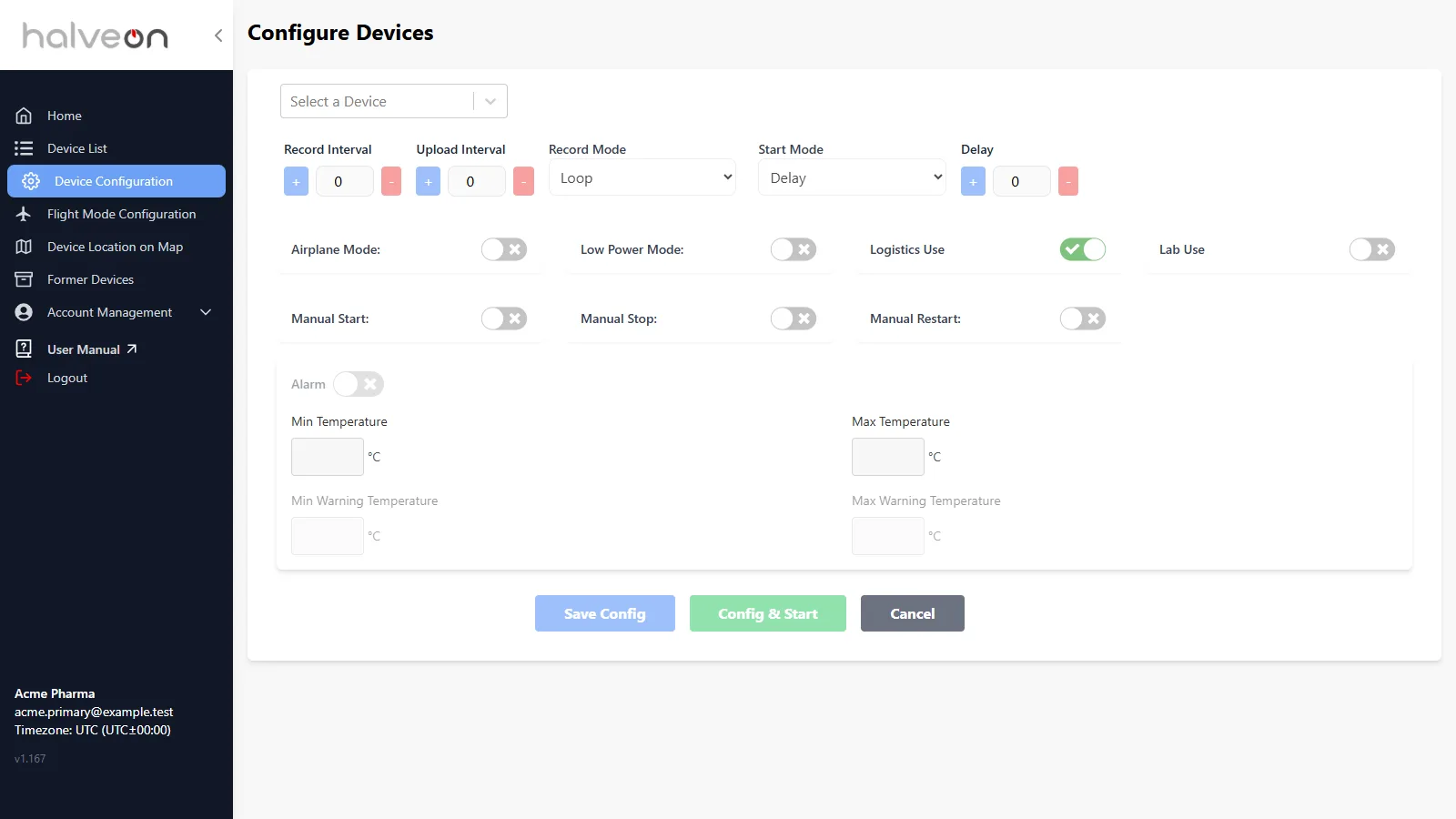
2. Configuration Fields
Intervals and start
| Field | Description |
|---|---|
| Record Interval | How often the device records a reading, in minutes (+ / − change it by 5). |
| Upload Interval | How often the device sends its data to the platform, in minutes. It must be at least twice the record interval; otherwise the field turns red ("Min: … (2× record interval)") and the buttons are disabled. |
| Record Mode | Loop: overwrites the oldest data when the memory is full. Single: the device stops recording when the memory is full. |
| Start Mode | Delay. |
| Delay | Start delay. |
Switches
| Switch | Description |
|---|---|
| Airplane Mode | Allows manual entry into airplane mode by pressing a button. Flights are set on the Flight Mode Configuration page. |
| Low Power Mode | The device saves power; commands to it are queued and delivered when it wakes up. |
| Logistics Use / Lab Use | The device mode: one of the two is always on. |
| Manual Start | Starting the device with its button is allowed. |
| Manual Stop | Stopping the device with its button is allowed. |
| Manual Restart | Restarting the device with its button after a stop is allowed. |
Alarm settings
| Field | Description |
|---|---|
| Alarm | Switches the alarms of the device on or off. The limits can be entered only while it is on. |
| Min Temperature / Max Temperature | The temperature alarm limits in °C. |
| Humidity Alarm | Devices with a humidity sensor (TH) only: switches the humidity alarm on; then Min Humidity / Max Humidity are shown. |
| Min Warning Temperature / Max Warning Temperature | Temperature-only devices (T): warning limits in °C. |
How alarms work, and the e-mails they send: Alarms.
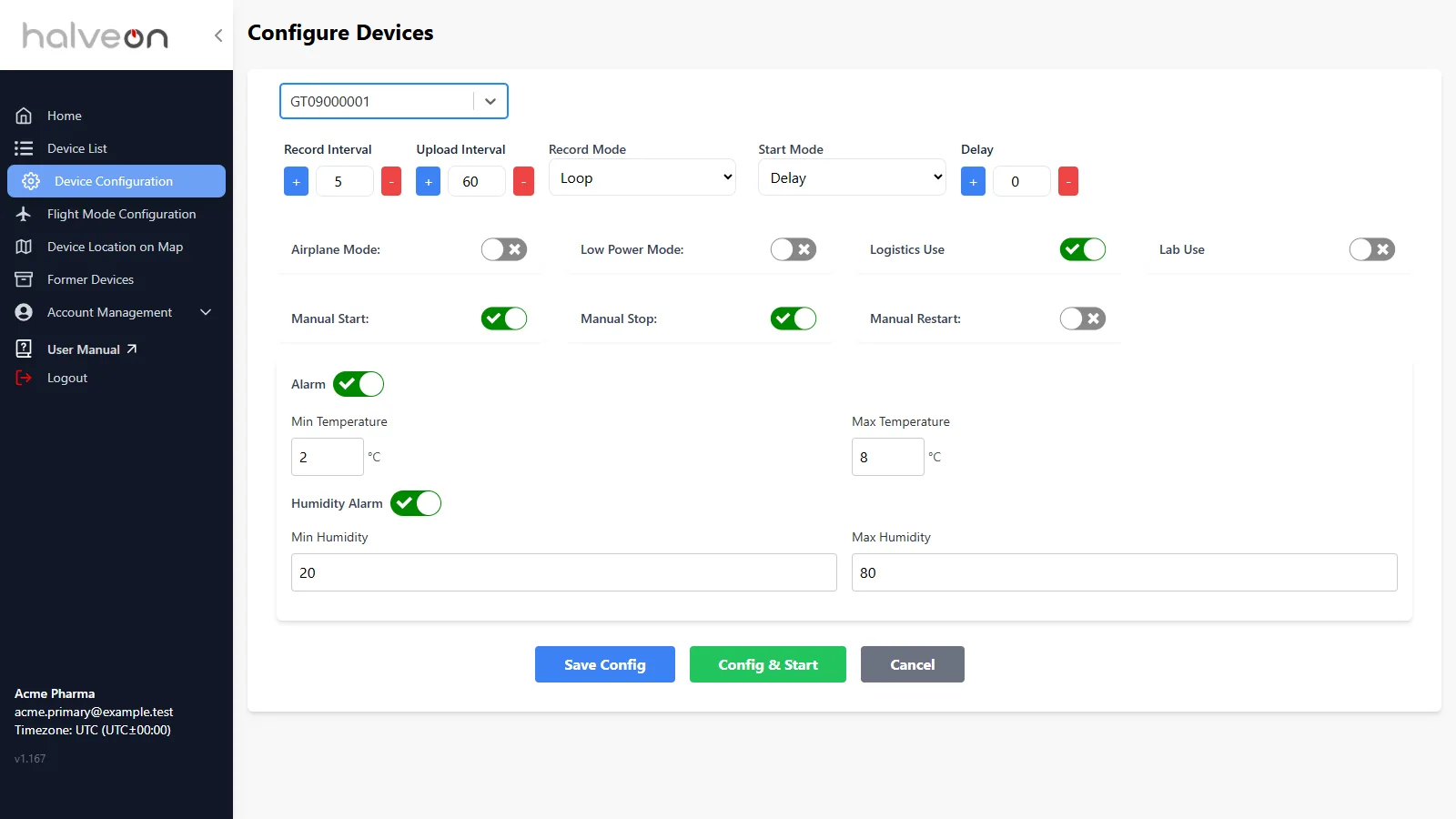
3. Save
| Button | What it does |
|---|---|
| Save Config | Sends the settings to the device. Message: "Device configuration saved successfully". |
| Config & Start | Sends the settings, checks them ("Config sent — verifying…") and then starts the device. Message: "Device configured and started successfully". |
| Cancel | Goes back to the previous page. |
If the device platform refuses the settings, the message "Configuration failed: …" shows the reason.
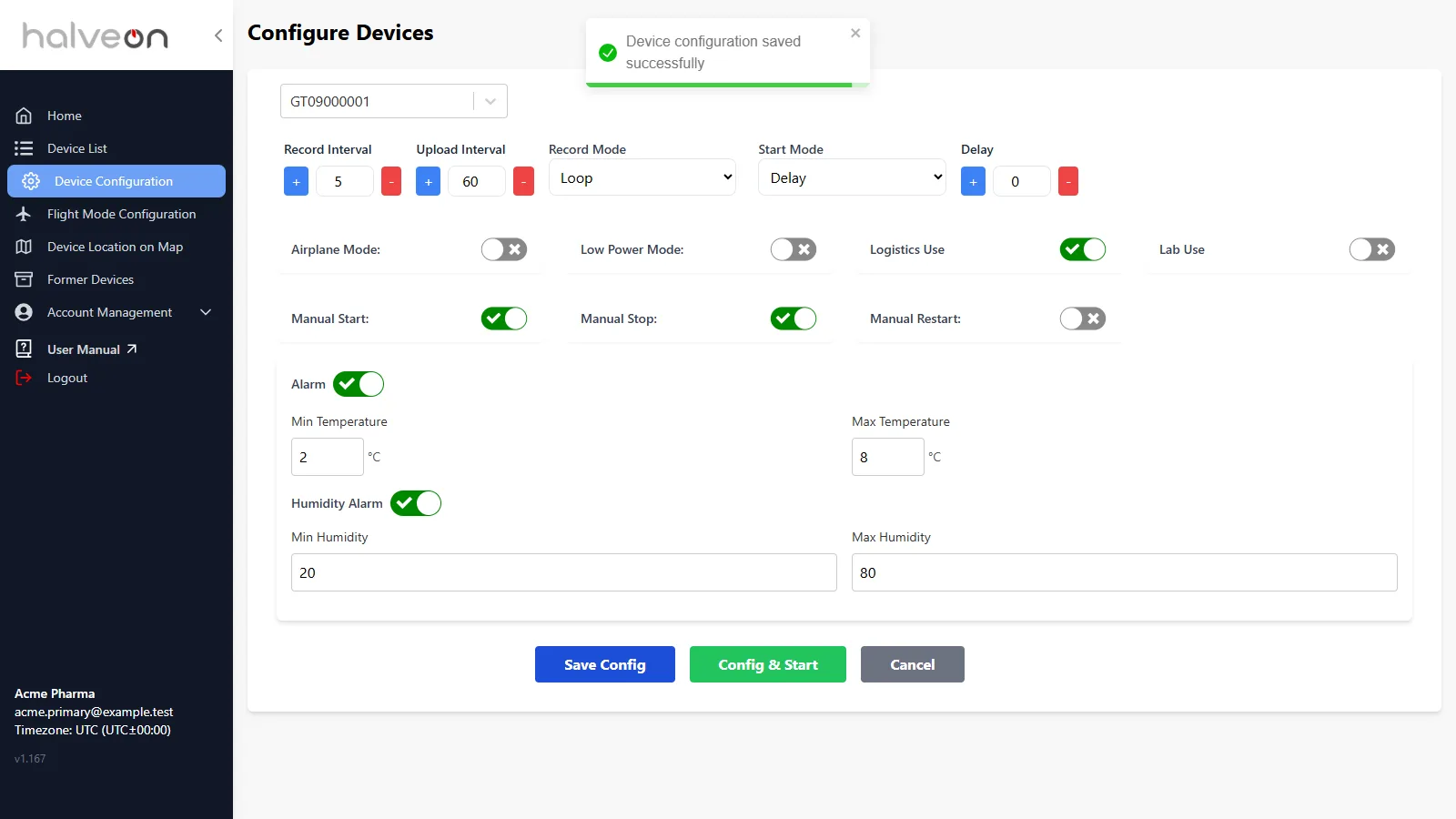
4. After a start
The Home page shows the progress of a start and the device's status. While a device is starting, its Start Time and Stop Time can read Fetching Timestamp or Device is Running until the device has reported its new state. See Start and Stop a Device.
Quick Guide
Steps to Configure:
- Select Device: choose a device in Select a Device.
- Adjust Settings: intervals, switches and alarm limits.
- Save: click Save Config — or Config & Start to start the device with the new settings.
- Check: on the Home page, the device shows Recording once it has started.