Device Location on Map
Overview
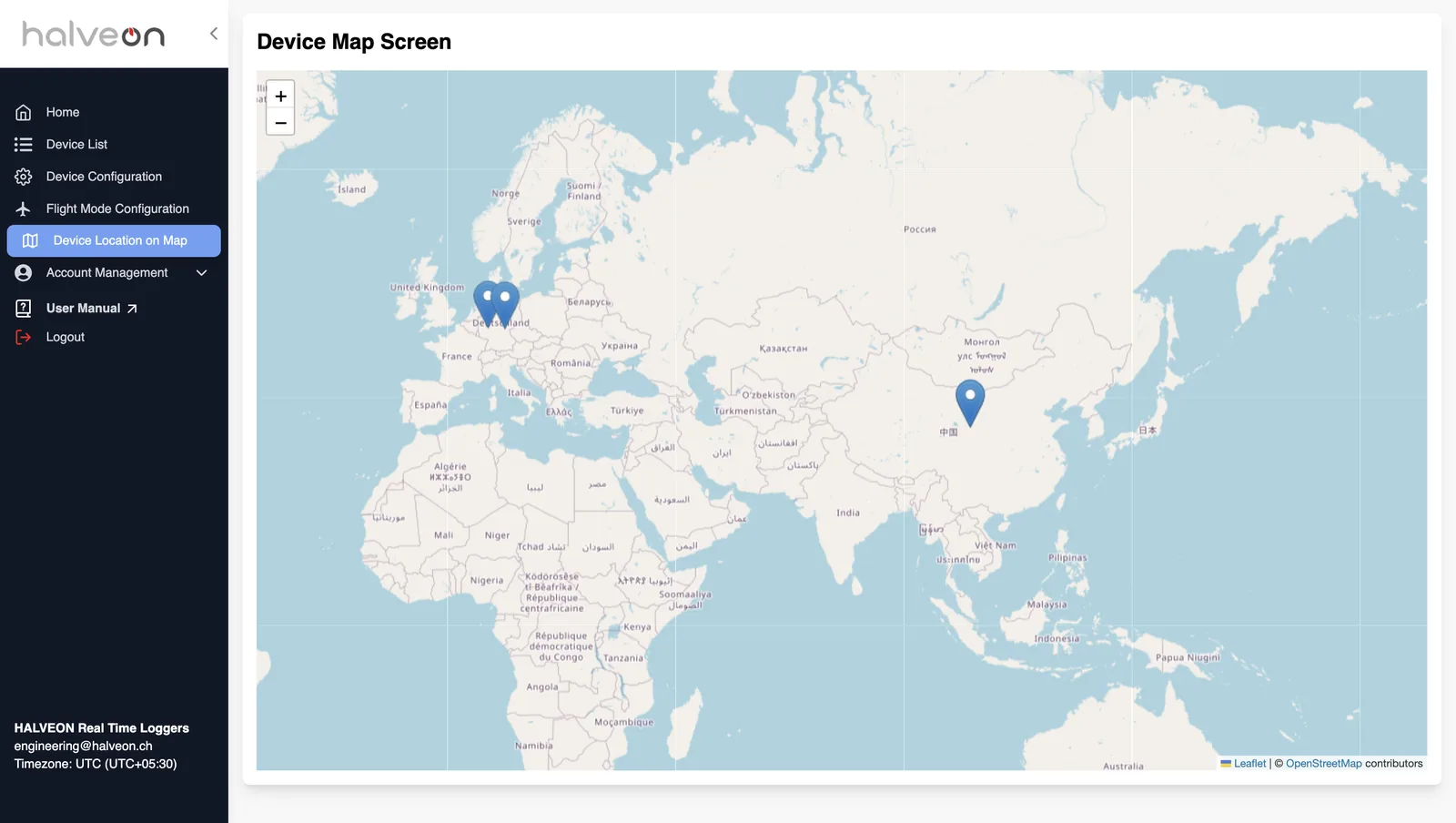
The Device Location on Map page (Device Map Screen) shows the last reported location of each device of your account. It also shows the route of a device over a chosen period, with its start and end location and the points in between.
Features
1. Default View
- The map shows a marker at the last reported location of each device of your account.
- Zoom with + / − or the mouse wheel.
2. View Device Stats
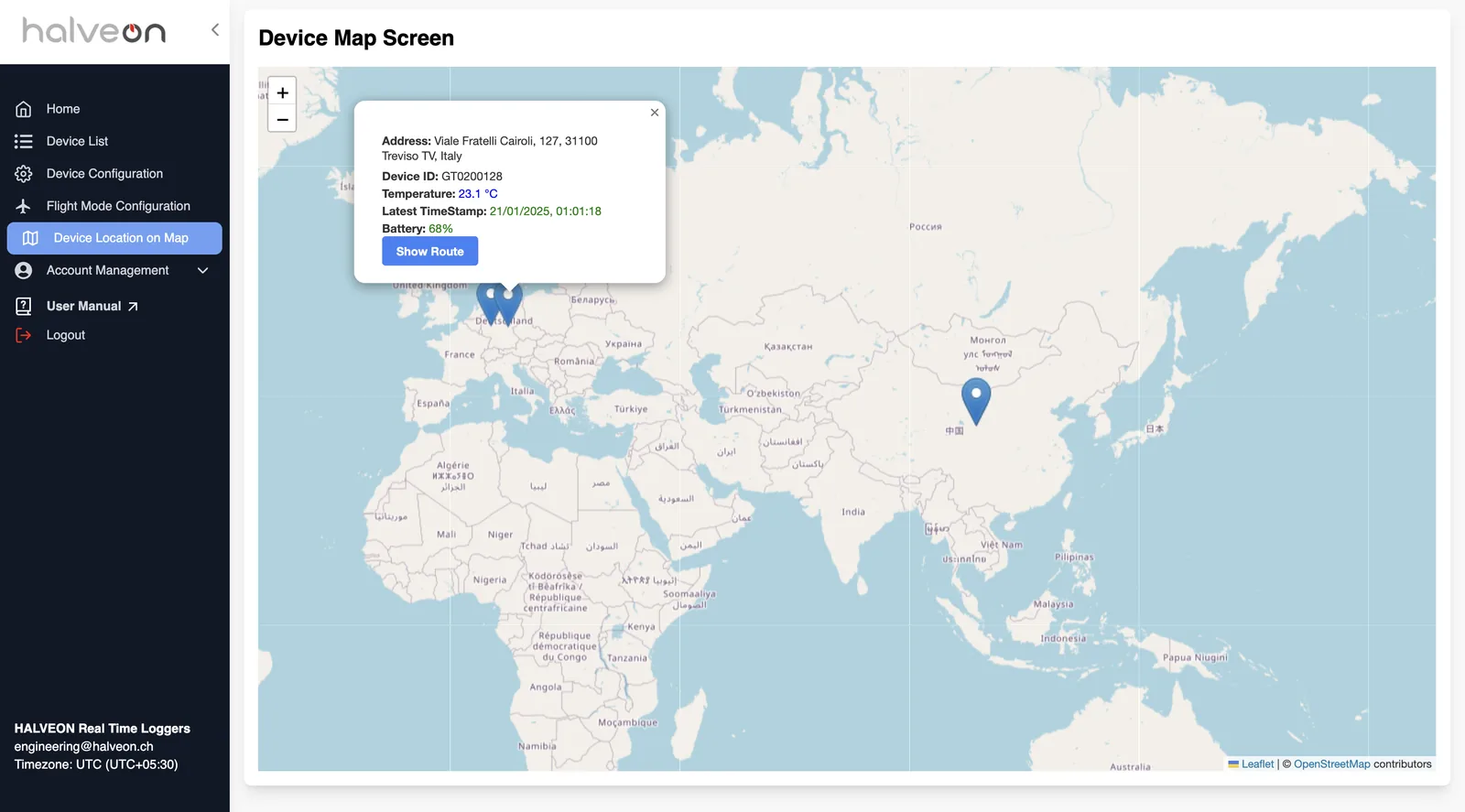
- Click a marker to open its popup:
- Address
- Device ID
- Temperature
- Latest TimeStamp (green when the device is online, red when it is offline)
- Battery
- Show Route button (see Route Tracking).
3. Device Table
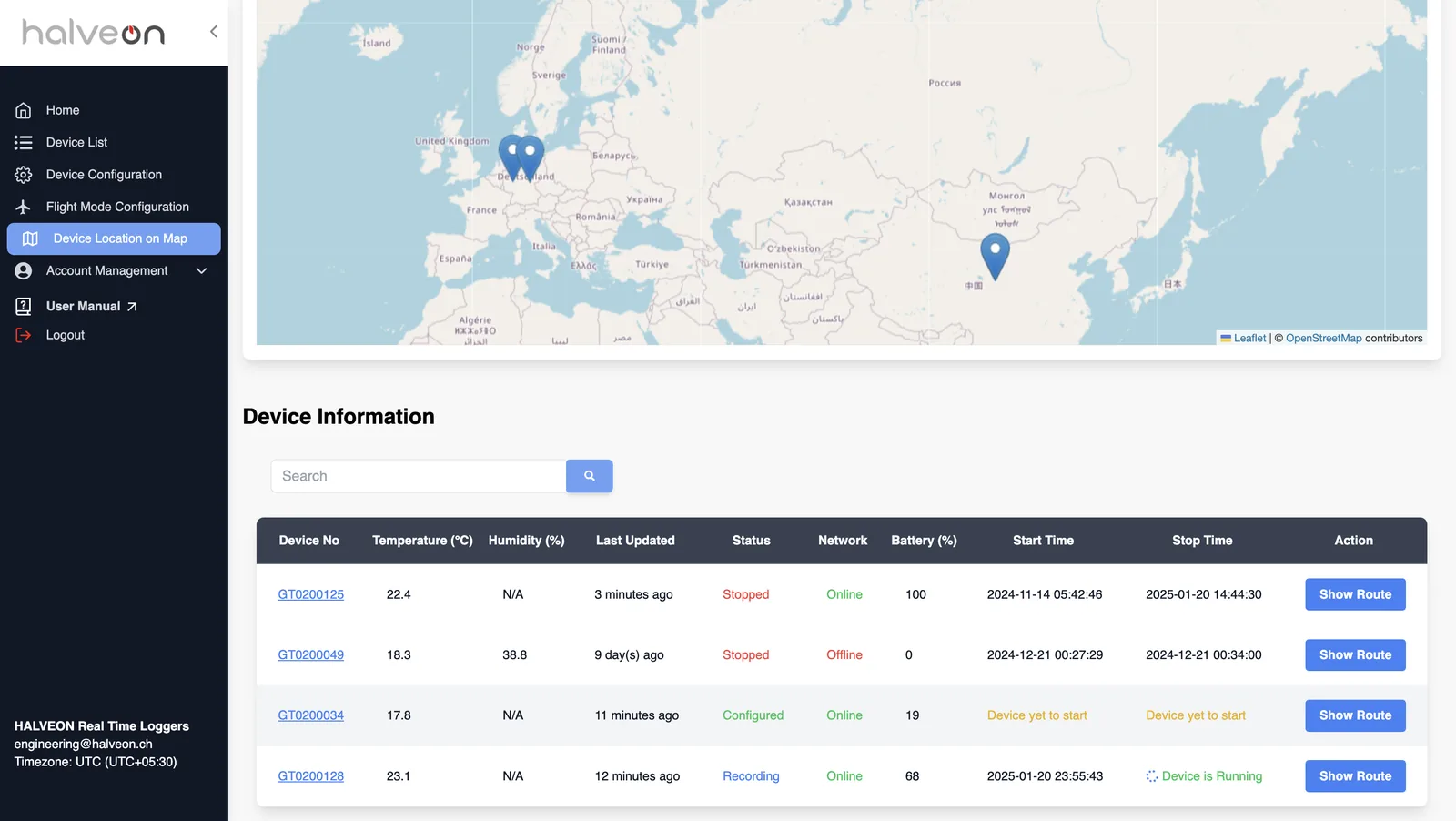
- Below the map, Device Information lists all devices with the following columns:
- Device Number
- Temperature (°C)
- Humidity (%)
- Last Updated
- Status
- Network
- Battery (%)
- Start Time
- Stop Time
- Action (Show Route)
- Show Route shows the device's route over a chosen period.
4. Route Tracking
Popup for Date Range
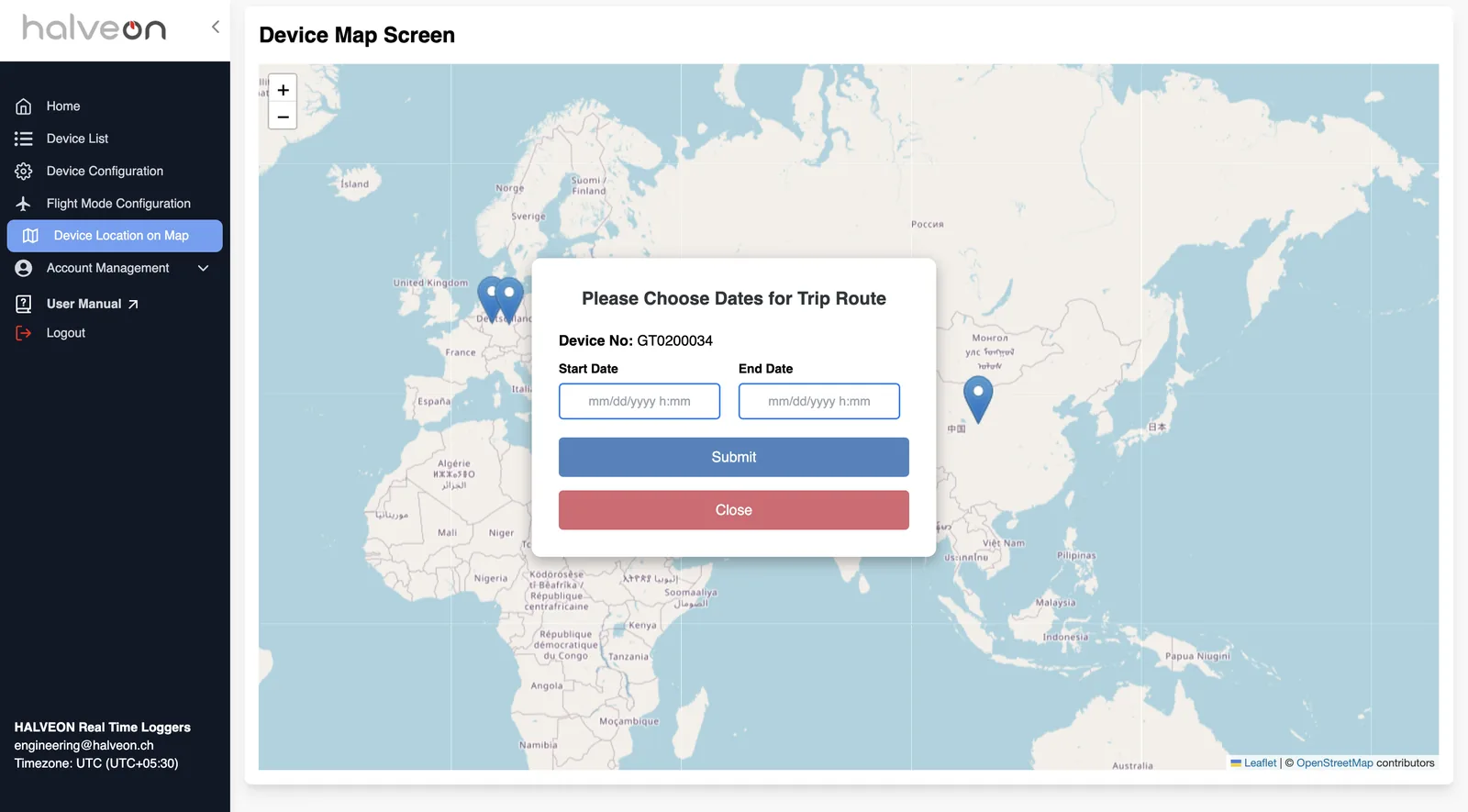
- Show Route (in the table or in a marker's popup) opens Please Choose Dates for Trip Route with the device number.
- Fields:
- Start Date
- End Date (the start date must be earlier than the end date)
- Actions:
- Submit
- Close
- Fields:
Route Display
- After Submit, the map shows the route of the device between the two dates.
- Markers and details:
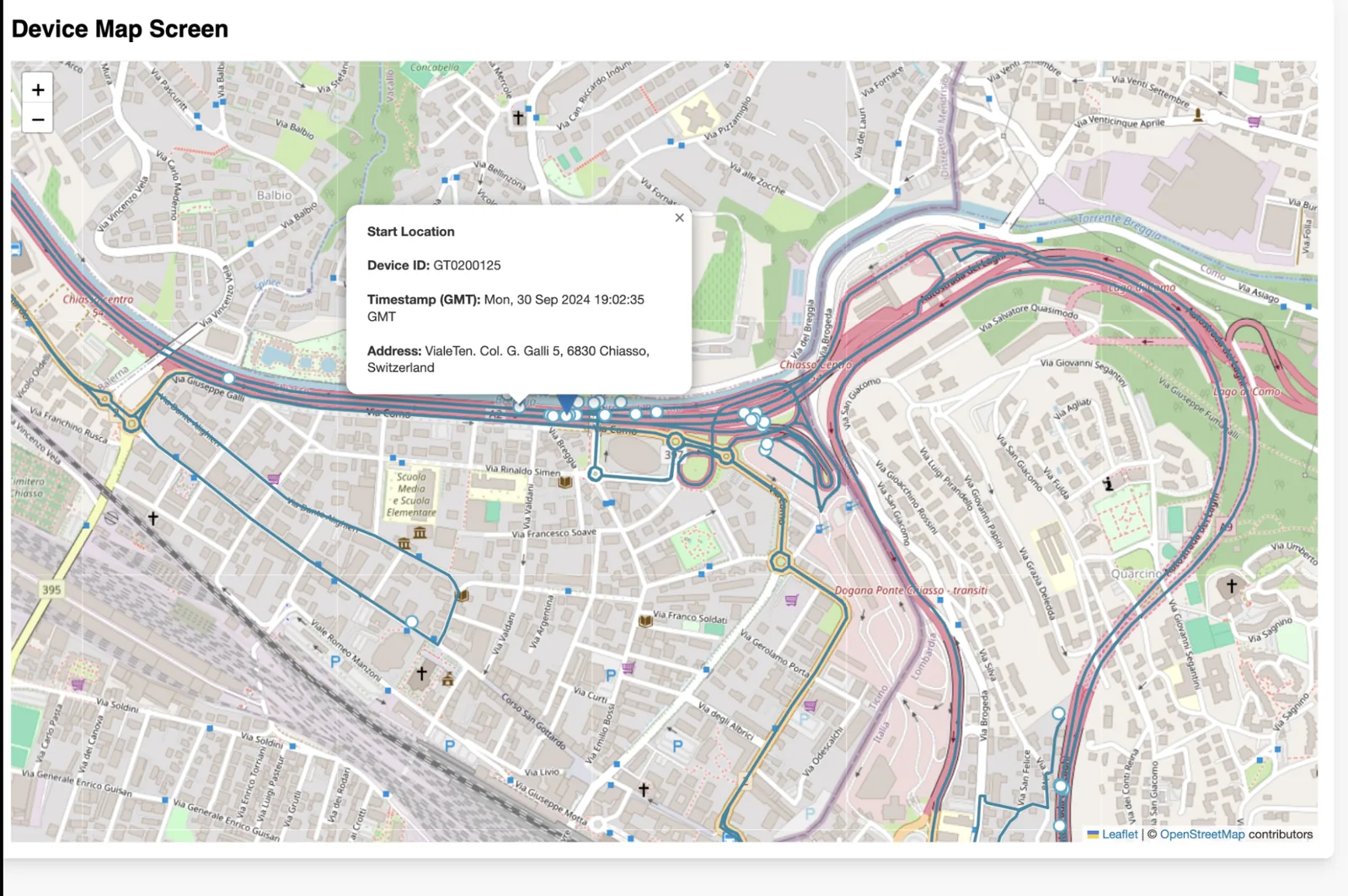
- Start Location: device ID, timestamp (GMT) and address.
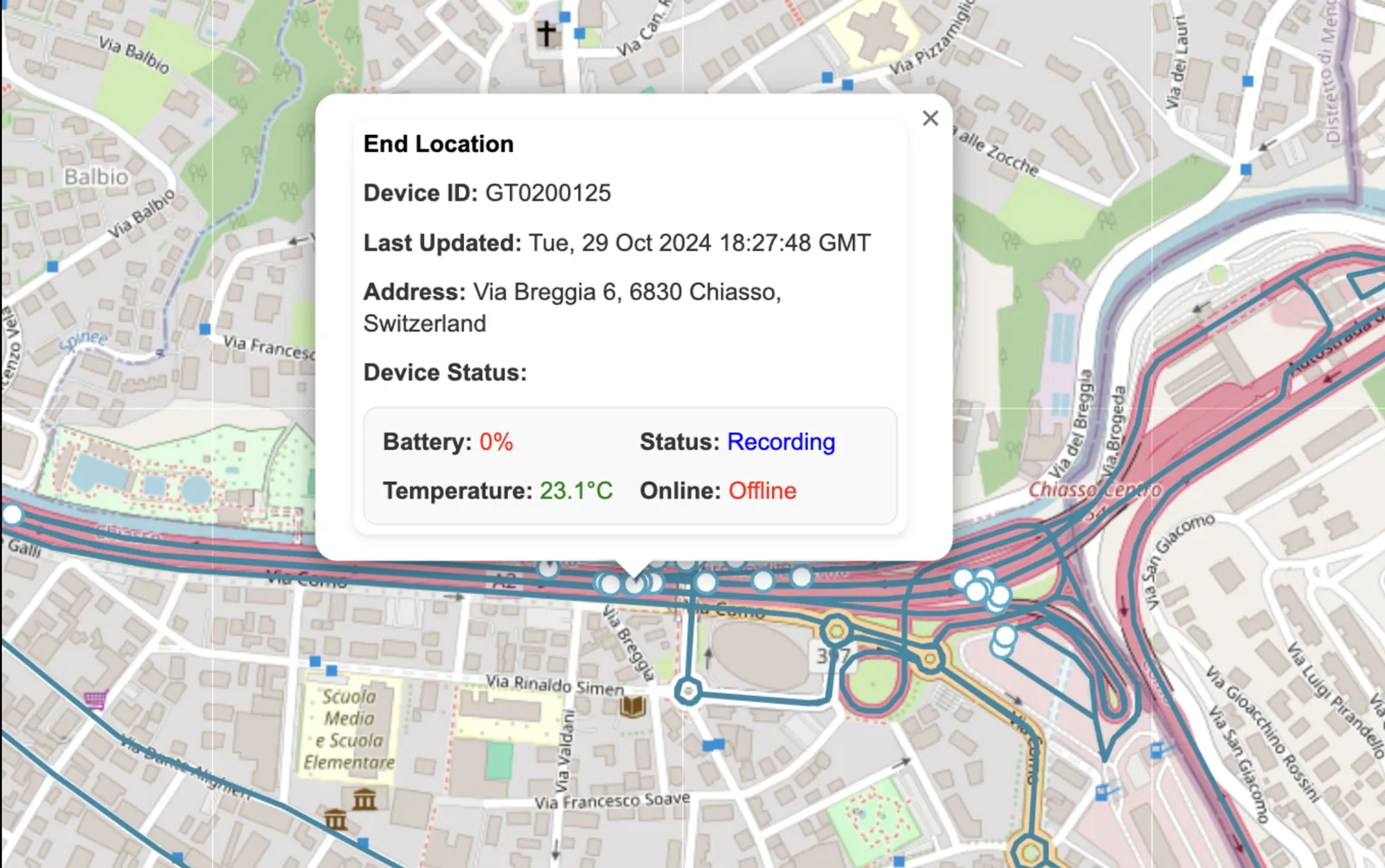
- End Location: device ID, last update, address and the device status.
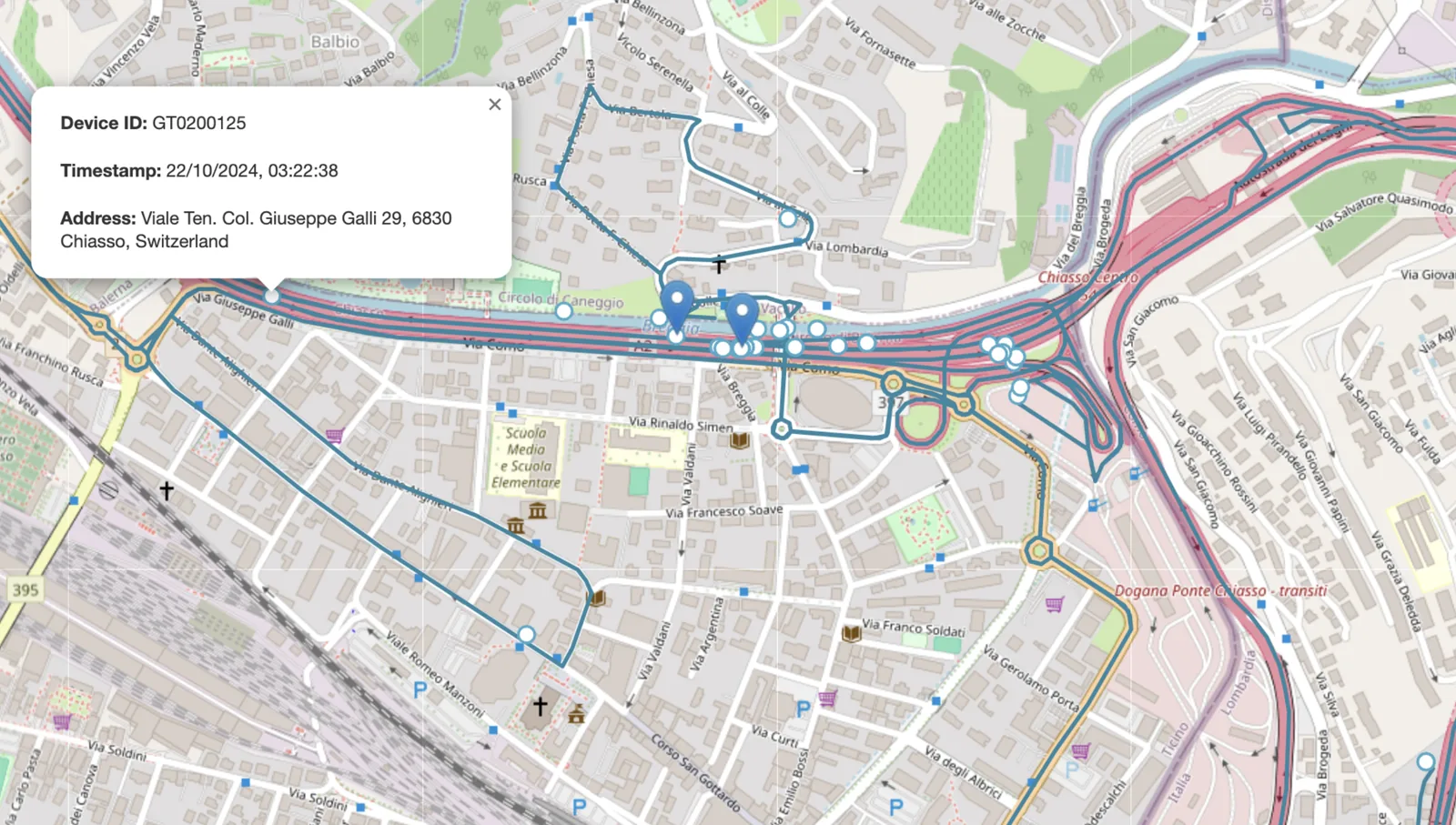
- Points in between: click a point on the route to see its device ID, timestamp and address.
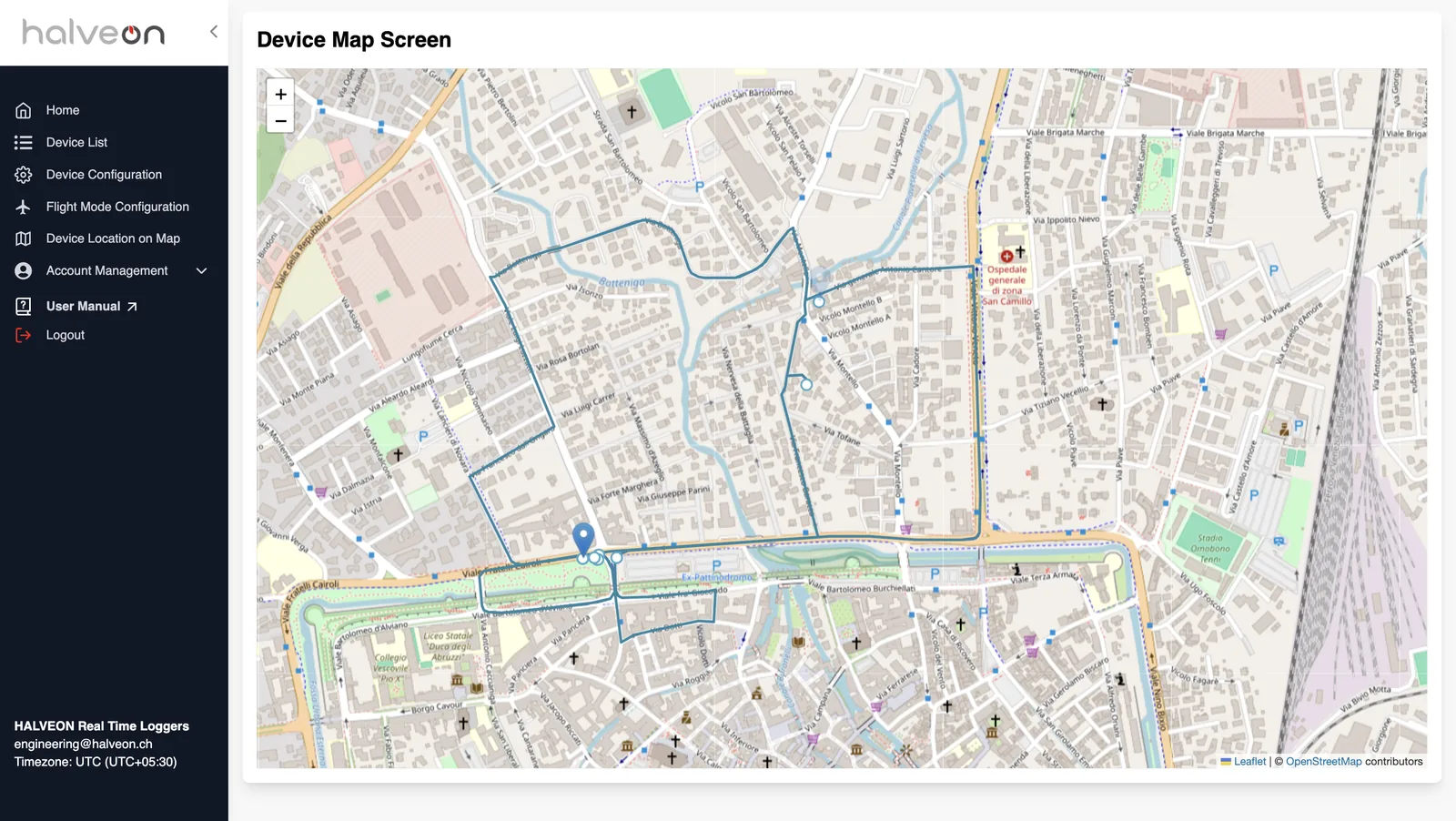
More Insights Details Screenshots
Start Location Details
- Clicking on the starting point of the route displays the following information:
- Device ID
- Timestamp (GMT)
- Address
End Location Details
- Clicking on the endpoint of the route displays:
- Device ID
- Last Updated Timestamp
- Address
- Device Status (Battery, Status, Temperature, Online / Offline)
Intermediate Details
- Clicking on any intermediate point on the route displays detailed information about that point, including:
- Device ID
- Timestamp
- Address
Quick Guide
Steps to Use:
- Default View: open Device Location on Map to see the last reported location of each device.
- View Device Stats: click a marker.
- Show Route: click Show Route in the table below the map or in a marker's popup.
- Specify Date Range: In the popup, select the start and end dates for the route and click Submit.
- Inspect Route: View the device path, including start, end, and intermediate locations, by clicking on the respective points.