Device List Documentation
Overview
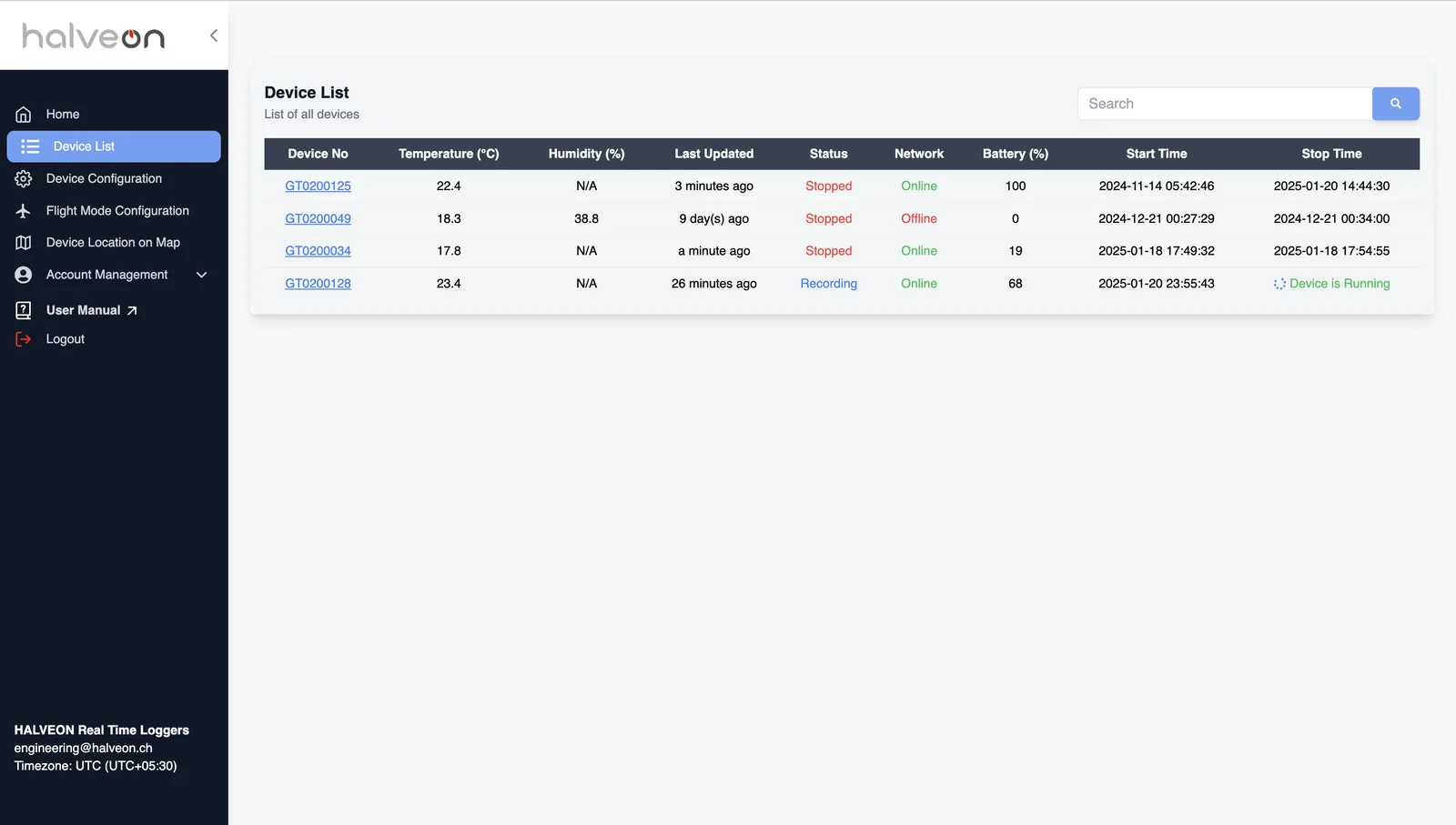
The Device List page shows all devices of your account in one table, without trips. Click a device number to open the device page with its gauges, alarms, charts and historical data.
Features
1. Device Table
Columns:
- Device No: the device number (click it to open the device page).
- Temperature (°C): latest temperature.
- Humidity (%): latest humidity ("N/A" for devices without humidity values).
- Last Updated: how long ago the device last reported (for example "3 minutes ago").
- Status: Configured, Start delay, Recording, Stopped or Not Reachable.
- Network: Online, Offline or "Low Power Mode Enabled".
- Battery (%): battery level.
- Start Time / Stop Time: start and stop of the recording; "Device yet to start" for a configured device.
2. Search and Sort
- Search: type any part of a value (for example a device number) to filter the rows.
- Sort: click a column title.

3. Navigation to Device Details
- Click a Device No to open the device page.

Device Details Page
A. Current Device Metrics
- Temperature, Humidity and Battery gauges with the current values. The temperature gauge is green between the alarm limits.
- Device Alarm Configuration:
- Temp HIGH Limit and Temp LOW Limit,
- Hum HIGH Limit and Hum LOW Limit ("N/A" when alarms are off or the device sends no humidity),
- Upload Interval,
- Status.

B. Alarm Events (Latest 3 Alarms)
The latest 3 alarms of the device:
| Column | Content |
|---|---|
| Alarm | Alarm #1 (newest) to #3 |
| Start Time / End Time | When the alarm started and ended; Ongoing while it lasts |
| Duration | Hours and minutes; Ongoing while it lasts |
| Trigger Temp | The temperature that started the alarm |
| Alarm Temp Low Limit / Alarm Temp High Limit | The limits that applied |
Without alarms the table reads "No alarm history for this device." More: Alarms.

C. Temperature and Humidity Charts
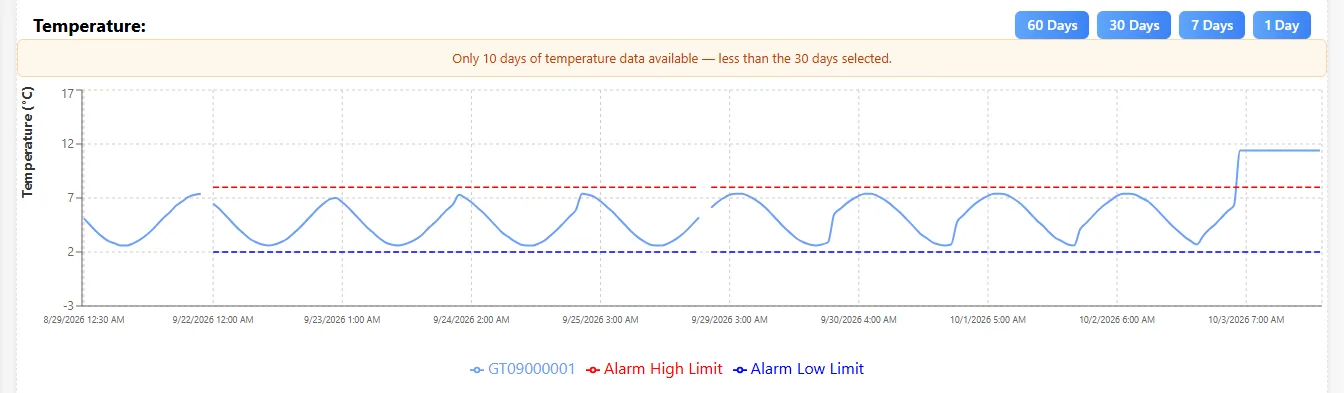
- Line charts for temperature and humidity, with the Alarm High Limit and Alarm Low Limit as dashed lines.
- 60 Days, 30 Days, 7 Days, 1 Day: the period shown (30 days when the page opens). If the device has less data than the period, a note says how many days are available.
D. Device Historical Data
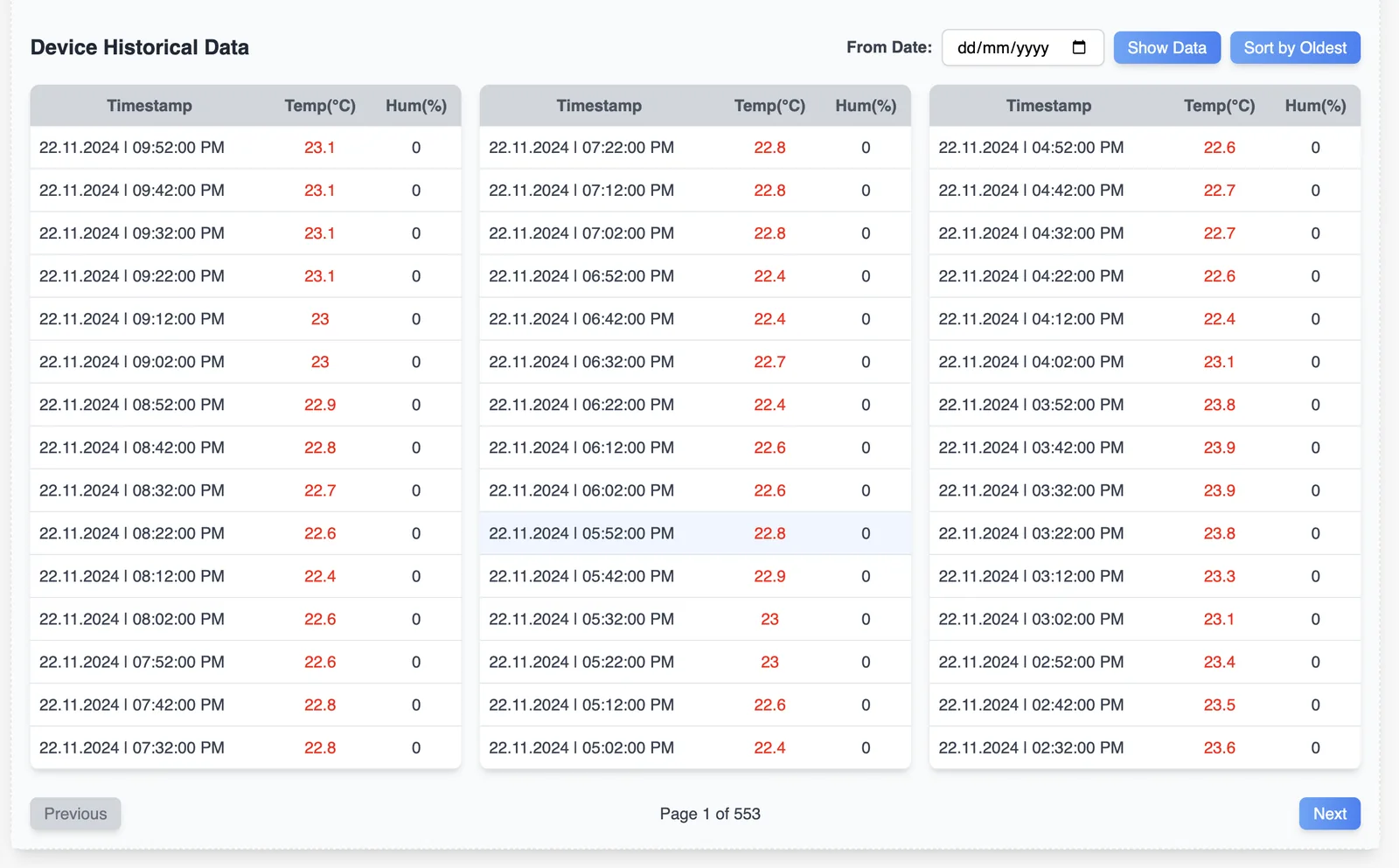
- The readings in three tables side by side: Timestamp, Temp(°C), Hum(%). Values outside the alarm limits are shown in red.
- Newest first; Sort by Oldest / Sort by Latest changes the order.
- From Date + Show Data: start the list at a date.
- Previous / Next move between pages ("Page 1 of …").
- Times are shown in the time zone chosen under Account Management → Select Timezone.
Quick Guide
- Open Device List and find the device (search or sort).
- Click the Device No.
- On the device page: check the gauges and limits, the latest alarms, the charts (choose the period) and the historical data.